







If you’ve been to the doctor’s office recently and seen your provider taking notes on a computer, there’s a good chance they are logging notes into Epic. Epic is a leading electronic health record (EHR) software system that aids healthcare providers in managing and exchanging patient information. Many organizations seek to enhance healthcare websites by providing providers and patients with a more holistic user experience. 

Benefits of Epic Integration

One of the most impactful ways to achieve this unified experience is by creating an online presence integrating Epic with your public-facing Drupal or WordPress website. Epic data exchange can facilitate all aspects of a patient’s care, including:

  • Giving individual patients easy, real-time access to their medical records
  • Enhancing the patient experience with accessible, intuitive presentation of their information
  • Providing individual patient information that facilitates clinical decision support for providers alongside relevant informational and reference content

Epic integration lets you facilitate these activities and much more from a single, unified location. Leveraging Epic’s interoperability allows you to work with the rich, full-featured editorial experience you’ve come to love in your Drupal or WordPress site alongside the power of your Epic EHR implementation. 

Integrating Epic with Drupal or WordPress CMS

Epic offers a robust set of HL7® FHIR® compliant APIs that developers can use to create custom applications for your needs. There’s no suitable “one size fits all” solution for Epic interoperability. Regardless of your CMS, you’ll want to build a solution tailored to your needs.

Security and compliance are paramount when interacting with your patient data. When working with Epic’s APIs, a partially decoupled architecture can protect your patient data while still leveraging the ease of use of a CMS for the rest of your on-site content. 
Consider an entirely headless approach to maximize the security and performance of patient and site data. A headless approach is a website with the backend decoupled from the frontend. The frontend is written with javascript like ReactJS, or VueJS. The content of a headless site typically comes from API’s. This means there is no database like we see in Drupal or WordPress. Your site-data, patient-data, and front-end will all live in different places. 

You can learn more about WordPress and Headless in our blog post. 

While a headless website gives you modern flexibility and separates the end-user experience from your sensitive data stores, it comes with technical complexities and tradeoffs. It may only be suitable for some organizations:

  • organizations with multiple API integrations, including site-content that is centralized and dispersed to multiple services or apps, 
  • those that have the extensive monthly budgets, bandwidth, and expertise to maintain a decoupled system, and 
  • organizations that require the highest security and performance possible may wish to consider a completely headless solution.

There are advantages and disadvantages to each approach. The below Pros and Cons list is an attempt to provide a quick overview to help you make an informed decision.

PRO

CON


CMS only

PRO

  • Site data is easily updatable
  • Skilled developers and agencies are plentiful
  • Ease of use
  • Templating and flexibility in content creation
  • Lower initial cost

CON

  • Patient data could be stored in the database
  • Only as flexible as the content management system allows
  • Only as performant as the CMS will allow for with the coupled front and backend.
  • The site itself is as secure as the CMS and the hosting provider.

Semi Decoupled site

PRO

  • Site data is easily updatable
  • Patient data is very secure
  • Templating and flexibility in content creation
  • Specially skilled developers are required
  • Maintainability cost is lower

CON

  • The site itself is as secure as the CMS and the hosting provider
  • The site itself is as performant as the CMS and the hosting provider.

Entirely Headless Site 

PRO

  • Patient data is very secure
  • Highly performant
  • Highly secure
  • Highly flexible
  • Omnichannel
  • Adaptable

CON

  • Site data is updatable but may require additional caching to be cleared
  • Specially skilled developers are required
  • May require multiple systems and personnel to publish a single update
  • Highest initial cost
  • Most content may be created with raw inputs and APIs

Conclusion

Integrating Epic with WordPress and Drupal empowers healthcare organizations to improve patient engagement, streamline clinical operations, and ensure compliance with regulatory standards. Whether using WordPress for its user-friendly interface or Drupal for its scalability and customization capabilities, healthcare providers can leverage Epic’s EHR functionalities to optimize the patient experience and create better health outcomes.

WordPress Maintenance and Support: The Ultimate Guide

After building an engaging WordPress website that tells your organization’s story to the world, you might be tempted to take a break from web development and let maintenance concerns fall by the wayside. However, ongoing WordPress maintenance is critical to the long-term health of your website. 

A lot goes into maintaining a WordPress site, especially if you want longevity, security, and the ability to grow. We’ve put together a guide to help you sort out what you need to make your site last, stay safe, and continue to meet your needs down the road. Here’s what we’ll cover: 

Why is WordPress maintenance so important?

To answer this question, we must consider another: what happens if you don’t maintain your site? What if you just pop a site up on a host somewhere and never touch it again?

In the best-case scenario, nothing. Your site exists, but that’s about it. It will be left in the dust as the rest of the web progresses. Even search engines will “forget” about it, so to speak, as they give higher priority to sites that are updated regularly. And since search engine optimization (SEO) performance and user expectations evolve monthly, your site may not be able to continue meeting your audience’s needs effectively. 

Worst-case scenarios are far more interesting to talk about. With all those security holes, from the lack of updates to WordPress core and your third-party plugins, the site could easily be hacked—remember, when they release the fix, they also reveal the security flaw. If you have no backups, you can’t restore to a version before the hack (where it will still be vulnerable to the same hack).

Or, your website host could one day alert you that they no longer support the version of PHP or MySQL your site is using. Some hosts automatically update these tools, and some even update Core for you, but not your plugins. Depending on how out-of-date your site is, these could be site-breaking compatibility issues. 

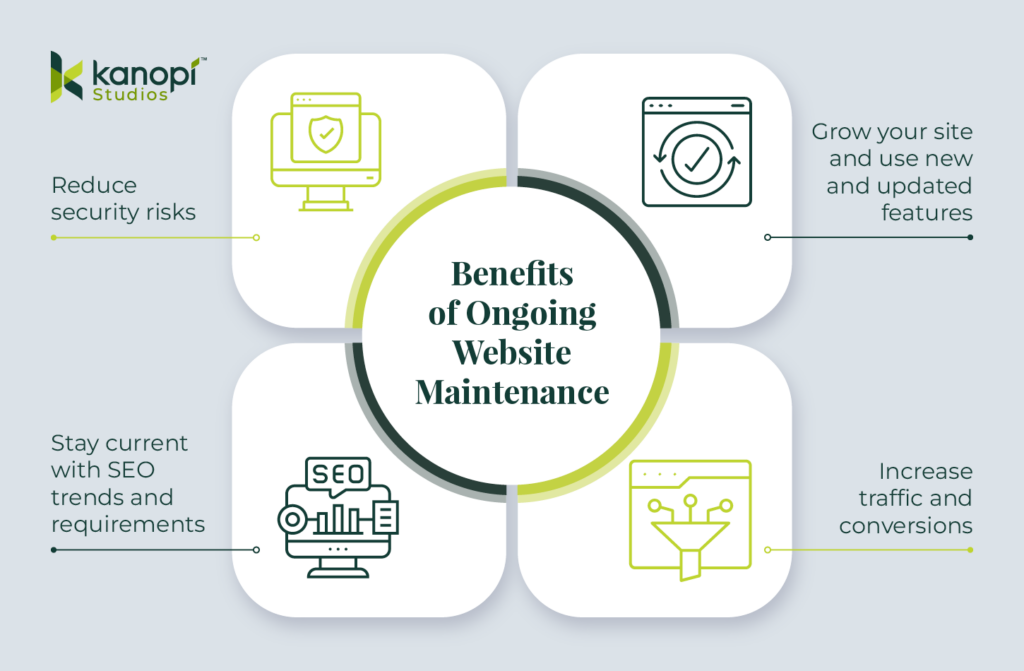
Clearly, it’s a huge risk to keep a poorly maintained or completely unmaintained website. On the other hand, the benefits of good maintenance and consistent support far outweigh the costs. Maintaining your website allows you to:

Benefits of ongoing website maintenance (described in the bulleted list below) 
  • Reduce security risks
  • Stay current with SEO trends and requirements 
  • Grow your site and use new and updated features
  • Increase traffic and conversions

However, proper maintenance can be time-consuming, requiring extensive research and hosting, WordPress, and website development expertise. That’s why many organizations and businesses turn to expert support providers like Kanopi to lighten the load (more on our services in a bit!). 

WordPress maintenance and support tasks

The exciting (and stressful) truth about the web is that it changes daily. Designers and developers must quickly become proficient in techniques they may have never heard of before. 

For site owners, this constant change means a lot of upkeep. What’s standard today could be different in a month. You must commit to regular, ongoing website maintenance to ensure your WordPress website stays healthy and up-to-date. While hosting companies will maintain your site’s server (where your website lives on the internet), most don’t offer the kinds of hands-on updates and support your specific website needs.

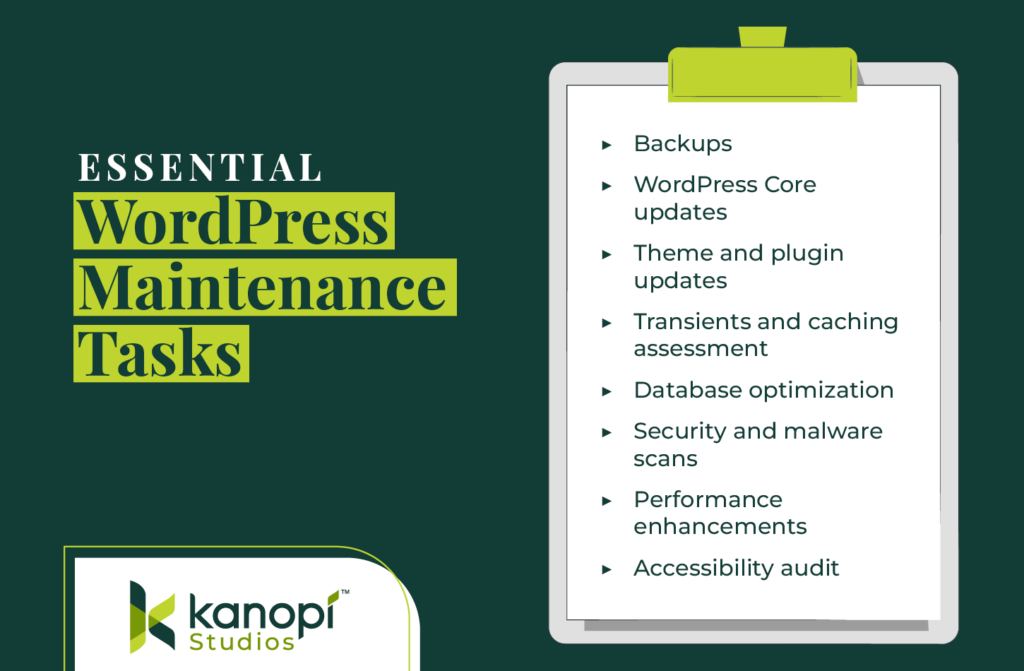
With that in mind, here are the most essential support tasks you must conduct regularly to keep your site healthy: 

A list of essential WordPress maintenance tasks (described in the sections below) 

Backups

You’re not really a web developer until you’ve deleted something critical and had to restore it. Most hosts offer backup plans, or at the very least provide you with a method of downloading your own backups. At Kanopi Studios, we use hosts that provide daily backups and let us create manual backups, ensuring we have total control in the event a site needs to be restored. 

WordPress core updates

WordPress is a growing, living thing. That’s what those little version numbers really mean—version 6.5.4 is out as of this writing. Core updates include security patches, as well as new or updated features that your developer can use to add innovative functionality to your site. 

The real cornerstone of this process is the security updates; when the WordPress team finds and resolves a security problem, they release an updated version of WordPress core, along with an explanation of that flaw. This means that the same security bug is now public knowledge and available to nefarious individuals to take advantage of. That’s why it’s essential to update your site promptly after a new core release.

Theme and plugin updates

Likewise, purchased themes or third-party plugins are subject to change for similar reasons—plugging security holes or adding new and improved features. It’s good practice to update these elements at least once a quarter to stay on top of it. 

Plus, it’s almost always easier to jump between minor versions (eg. 6.4.2 to 6.4.5) than to wait and go from one major release to another (eg. 4.3.1 to 6.4.5). Although, it is a good way to get that adrenaline pumping, especially if you don’t have backups (but we strongly advise against it if you want your site to stay intact!).

Transients and caching assessment

Both servers and browsers cache websites to deliver content faster. A cache essentially stores a “snapshot” of a website and then delivers that snapshot upon subsequent visits to reduce load time. 

Of course, as a website owner, you want this snapshot to update when you add new information. Sometimes caching can be too aggressive or non-existent. It’s valuable to consider your website’s specific needs to choose the right type of caching. WordPress also uses something called transients, which allow developers to add additional caching for specific types of database queries. This is essential for large or complex sites.

Caching can be done in several ways: your website host may have caching, you could use a third-party caching plugin or service, a developer could add caching-specific code, or you could implement a combination of all three.

Database optimization

Over time, new content is added to your website database, with either new rows or columns of data, new database tables, or new connections between tables. It’s like your website’s filing cabinet, going back to the beginning of time. This growth can get messy if it’s not maintained and pruned regularly. 

Some hosts offer manual “one-click” database optimization solutions, but for a real thorough cleanup, you need someone with the technical know-how and familiarity with your site. Also, backups. Always backups.

Security and malware scans

Sometimes, you may do everything you can to keep WordPress core and your plugins updated, but your site still ends up vulnerable to cyber attacks. Because of WordPress’s popularity, it is by far the most hacked CMS (it’s the target of 90% of all hacking attempts). That’s why it’s wise to run ongoing security checks and malware scans to catch any potential issues. 

WordPress offers a variety of security plugins to manage these scans. However, we recommend working with an experienced web developer who can recommend the right tool for your site that won’t compromise performance. 

Performance enhancements

Website performance involves the ongoing tasks and elements that allow your site to run like a well-oiled machine. When load speeds, conversion opportunities, and other technical factors are optimized, your site will be a performant resource that exceeds your audience’s expectations. With that in mind, you should conduct the following performance checks every few weeks: 

  • Assess your site’s load speeds. Ideally, your website should load in 2 seconds or less. You can use PageSpeed Insights to test your site’s pages. 
  • Set up a notification if your site goes down. Whenever a website goes offline, even if it’s just for a few minutes, it can damage the site’s reputation and reduce conversions. Use a free tool or plugin to set up a notification if your site goes down so you can identify the issue and get your site back up and running. 
  • Test your site’s most important conversion forms. Your site’s conversion opportunities enable casual visitors to engage with your organization, whether through making a purchase, donating, signing up for your newsletter, registering to volunteer, or taking another action. Ensure your conversion forms work properly and load quickly on laptops and mobile devices. 

Accessibility audit

Last (but certainly not least), you must make accessibility a core priority for your WordPress maintenance efforts. Emphasizing accessibility ensures your website can remain a usable resource for all audience members. Accessibility best practices and technologies constantly evolve, so you must stay up to date with relevant guidelines and assistive tools

You can use automated tools to assess your site’s accessibility (we cover a few options in the next section), but we also recommend manually testing your site. This allows you to recreate the user experience and catch any issues that may have slipped through undetected. 

To build a website that’s truly accessible at its core, we recommend taking a holistic approach to accessibility with the help of an experienced web design partner. For example, here’s a quick look at Kanopi’s integrated accessibility approach:

Contact us to learn how we can support your unique accessibility needs based on your audience’s characteristics. 

10 effective WordPress maintenance services and tools

There are plenty of WordPress maintenance tools and services available online that can help you maintain a high-quality website for years to come. We’ve rounded up a few of our favorite solutions to help you get started. 

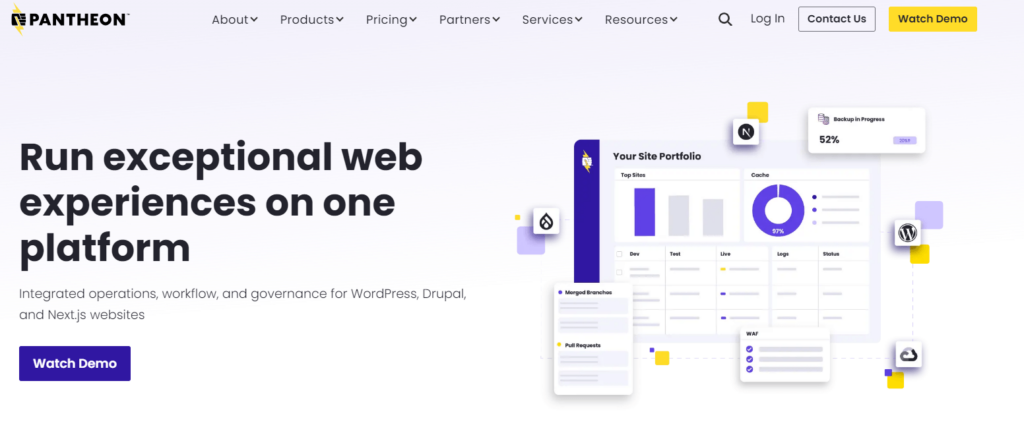
Pantheon: WordPress Host

Pantheon homepage

Pantheon is one of Kanopi’s partners for a reason! We love using their platform for hosting WordPress sites. They have powerful features for iterative development and rollouts, and you can even check your plugin versions right from the dashboard with security alerts attached.

WP Engine: WordPress Host

WP Engine homepage

WPEngine also specializes in WordPress hosting, which means they know the ins and outs of the CMS and can help with common problems. Their support is fast, knowledgeable, and dedicated. Their platform also keeps up with the latest stable PHP version and WordPress core, with easy testing and deployment.

Yoast: WordPress Search Engine Optimization

Yoast homepage

Yoast is a plugin we regularly use and recommend for WordPress websites. Yoast automatically adds basic schema data to your website, creates a sitemap XML, and empowers you to create dynamically generated metadata for your various post types. The free version has all the features you need, making this an affordable addition to your tech stack. 

Screaming Frog SEO Spider: Website Crawler

Screaming Frog homepage

Screaming Frog’s SEO Spider is another solution that can help you monitor and improve your site’s technical performance, which will in turn boost your SEO rankings. The SEO Spider crawls your website to identify issues like broken links, redirect chains, defective meta descriptions and titles, and duplicate content. Then, you can quickly correct these issues to enhance your site’s performance and make it easier for search engines to crawl and index the site. 

Google Analytics: Website Analytics Platform

Google Analytics homepage

Google Analytics offers website analytics to assess the effectiveness of your engagement and conversion opportunities. With Google Analytics, you can track metrics such as your website’s page views, bounce rate, time on page, traffic sources, and other detailed information. This data provides a well-rounded picture of who your visitors are and what they want from your site. 

HotJar: User Experience Assessment Tools

HotJar homepage

HotJar is a WordPress plugin that advertises itself as a tool to discover “Everything you ever wanted to know about your website… but your analytics never told you.” In practice, this means HotJar offers detailed user experience tracking tools such as website heatmaps, user session recordings, and feedback and survey tools to gather input from real site visitors. 

HotJar is effective for gaining a comprehensive understanding of the user experience on your website and ways you can improve the experience as part of your ongoing maintenance efforts. 

Kraken.io: Image Optimization

Kraken.io homepage

Images make up a lot of your website’s “weight,” which is why it’s necessary to compress images to ensure faster page load speeds. Kraken.io is a paid service with a WordPress plugin that allows you to create optimized images for your website. For quick image optimization, you can also use a free tool like TinyPNG.

PageSpeed Insights: Page Speed and Accessibility Assessments

PageSpeed Insights homepage

PageSpeed Insights gives you a quick overview of how well your site is doing across the board, including performance, SEO, accessibility, and best practices. Put any URL in and see how it stacks up compared to Google’s standards. You can also download this as an extension (Google Lighthouse) for Chrome and run it directly in your browser.

Siteimprove: Accessibility Checker

Siteimprove's website accessibility checker

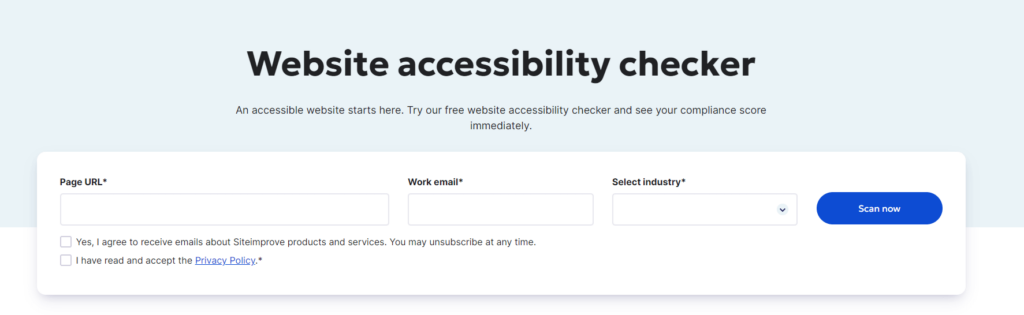
Siteimprove offers a free accessibility checker and WordPress accessibility plugin to help ensure your site aligns with the Web Content Accessibility Guidelines (WCAG). You can assess key components of your site’s accessibility, such as color contrast, headings, alt text, broken links, navigation, and anchor text descriptiveness. 

Kanopi: WordPress Maintenance Services

To keep your site healthy and expand its functionality over the years, you need more than just simple maintenance services and security scans. You need a dedicated partner who can learn your website inside and out and offer reliable support all year round. That’s where Kanopi comes in!

We work with some great hosting partners who understand what we’re about, and it lets us hold the right reins when it comes to our client sites. Our developers are experienced with the CMS and strive to uphold WordPress’s own standards. 

Top Features of Kanopi’s WordPress Maintenance Services

Kanopi’s well-rounded team of experienced designers, strategists, and developers enables us to support your WordPress website at any stage of its lifecycle. Got a lemon that needs a serious overhaul? Need a complete rebuild? Have a freshly built higher ed website or hospital website that needs extra care to keep it going? We’ve got the combination of skills and people needed to handle your website wherever it’s at.

Like your site, our team is also always growing its knowledge base. We stay up-to-date with security releases, changes to WordPress core, industry standards, and new technologies. If the next version of PHP is on the way, we’re already preparing your site for the update.

Specifically, here’s an overview of our services

  • Module and plugin upgrades
  • Bug fixes and security patches
  • Development modifications
  • Updating content types/views
  • Third-party integrations
  • CSS/HTML changes
  • Commerce updates
  • Performance enhancements
  • Content revisions and updates
  • Managing support tickets with your host

We’re not just about keeping your website running—Kanopi works closely with you to genuinely understand your organization. Forging this partnership allows us to help you create a website that truly represents your organization as we strategize together. 

We take a continuous improvement and growth-driven approach with incremental updates like navigation strategy and SEO fixes that boost your site over time. Here’s a look at how our growth-driven approach works vs. traditional website design and development: 

Interested in learning more about Kanopi’s WordPress services? Check out our WordPress work to see examples of how we’ve supported and improved sites over time. We work with all types of WordPress websites across industries, including healthcare, education, nonprofit, corporate, and arts and culture sites.

Final thoughts

To summarize, yes, you need to maintain your WordPress website, yes, there’s a lot to do, and yes, someone else can do it for you. If you’re interested in a partnership with Kanopi, we’d love to hear from you. If you need more information about the maintenance process, start with these additional resources: 

The Ultimate Guide to Drupal Planning and Development

This post was last updated in September 2024 to incorporate information about the recent release of Drupal 11. 

Kanopi is a Drupal Certified Partner and can help with your migration needs.

Drupal is an open-source software content management system (CMS) that powers over 1 million websites globally. As a Drupal user, you were probably drawn to the platform because of its scalability and flexibility. You also know your site requires continual planning and updates to retain an informative, engaging online presence. 

To ensure your website continues to excel, you must stay up-to-date with the latest changes in the Drupal world. Specifically, Drupal’s latest version, Drupal 11, launched in August 2024. 

Now is a good time to review how these changes will impact your CMS planning. We’ve crafted this Drupal planning and development guide to help you prepare for upgrades and migrations and preserve your website well into the future. Let’s start by looking at some frequently asked questions from Drupal users regarding planning and development. 

Drupal Planning and Development FAQs

What is the difference between WordPress and Drupal? 

Both Drupal and WordPress are user-friendly, open-source platforms used to build powerful, comprehensive websites. Generally speaking, WordPress is known for its relatively simple admin user experience with many ready-made themes to choose from. By contrast, Drupal is often used by organizations looking to build complex sites, integrate with other services, and receive ongoing support from an agency or in-house developers. 

If you’re looking to switch systems or are adopting a robust CMS for the first time, compare each platform’s features to determine which one better suits your needs. Kanopi’s Drupal vs. WordPress guide can help steer your decision-making. 

I see Drupal 11 is the latest version. Should I upgrade to Drupal 11? 

Upgrading your website to Drupal 11 depends on your current codebase and whether you have the resources and time needed to manage a migration. An audit of your existing Drupal site can help you decide when the best time to update to Drupal 11 should be.

Kanopi can help you work out the best upgrade or migration path. We’ll take a deep dive into your Drupal planning and development roadmap later on in this post

How often should I make security and module updates in Drupal?

Review Drupal core security updates and contributed modules as they are released and apply them with expedience based on their Security Risk level. The higher the level, the more risk the vulnerability is to the site.

Non-security module updates are best done monthly or quarterly depending on time available or budget. Keeping your code up to date with the latest releases helps make future site upgrades easier, takes advantage of bug fixes, and can add additional functionality.

How can I get started building my Drupal planning and development strategy?

If you’re unsure where to begin with your Drupal planning, consider partnering with a Drupal development specialist. We’ve compiled a list of key support tasks you should expect to receive from an agency offering to assist you with your Drupal planning. They should:

  1. Work with you to create a Drupal strategy roadmap.
  2. Get familiar with your organization and your budget.
  3. Define the best way to curate existing content to maximize conversions.
  4. Provide module support.
  5. Offer Drupal training.

We’ll highlight additional ways a Drupal specialist can help optimize your website later on in this post

Where can I find Drupal talent? 

Drupal.org is a great place to start if you’re looking for Drupal talent. Kanopi also has a friendly team of Drupal experts ready to help you strategize your Drupal planning and development. Each of our Drupal experts has an average of 11 years of experience in Drupal development. 

Where can I find more Drupal development tools and resources?

Kanopi’s resource library can help you learn more about Drupal, stay up to date on release updates, and craft your development strategy. Drupal also has a dedicated Slack channel for users. Other resources include:

Preparing Your Drupal Planning and Development Roadmap

Have you reviewed your website users’ needs recently? What about your site’s usability, accessibility, and content quality? 

User needs change over time. That’s why it’s essential to have the most up-to-date picture of your users’ unique needs and take steps to determine whether your website content meets those demands. 

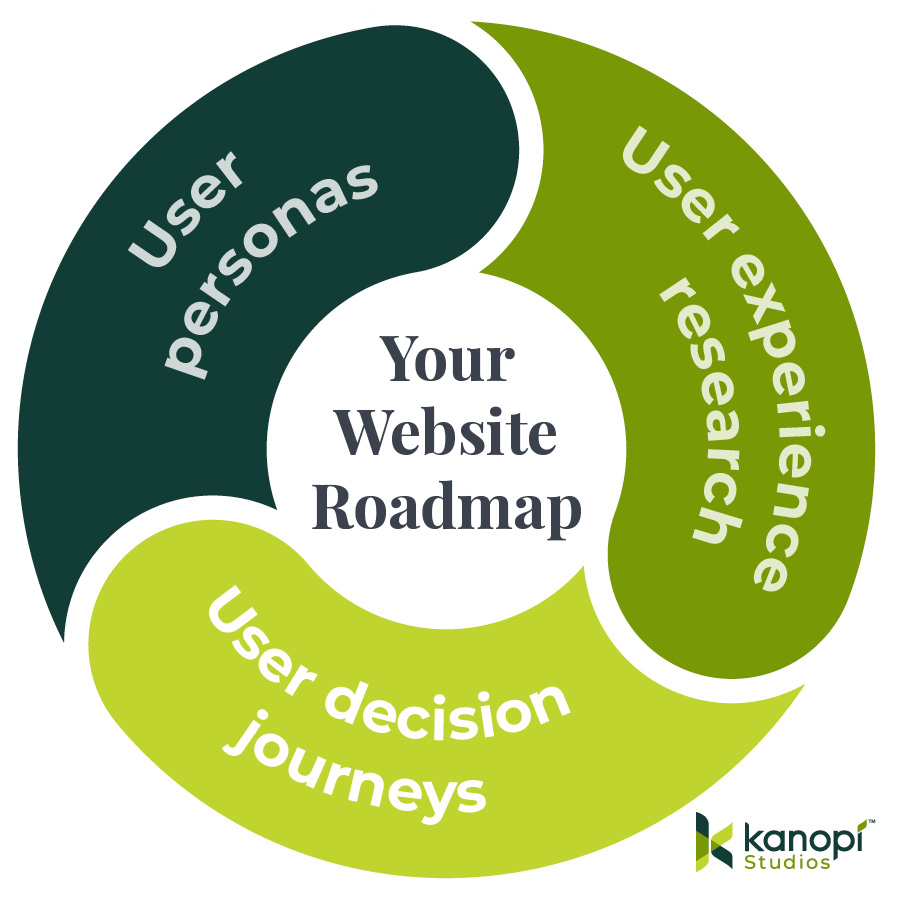
If you’re brainstorming your Drupal roadmap, we suggest carefully considering the following: 

These are the elements of a Drupal planning and development roadmap, outlined in the text below.
  • Undertaking user experience (UX) research. Use your website analytics and traffic patterns to determine how effectively different website aspects engage visitors. For instance, does your nonprofit’s online donation form have a high conversion rate? Can visitors easily find your business’s contact information and event calendar? Test site elements such as load speed, mobile-friendliness, and accessibility. 
  • Streamlining your user decision journey. The user decision journey is the steps your audience members take to learn about your organization and determine whether they want to engage with you further. This might involve purchasing one of your products or services, donating to your cause, or signing up to become a member of your group. Assess whether your website streamlines the user journey by asking questions about how visitors are likely to engage with your site. Do you have a variety of calls to action throughout the site that encourage visitors to get more involved? 
  • Fine-tuning your user personas. Is your website reaching the right people? Creating in-depth audience profiles allows you to understand your audience’s needs, goals, and interests and design your website content accordingly. Reassess your user personas to determine whether your audience has changed. Use the information in your customer or constituent relationship management system to assess your audience’s demographics, purchasing habits, and other distinctive characteristics. 

By assessing the UX and appealing to your user personas, you can deal with blockages in your customers’ decision journey and create a more valuable website experience. You can also identify any sweet spots where your site currently excels that could be built upon ahead of your site migration. 

Planning Pathways for Drupal Users

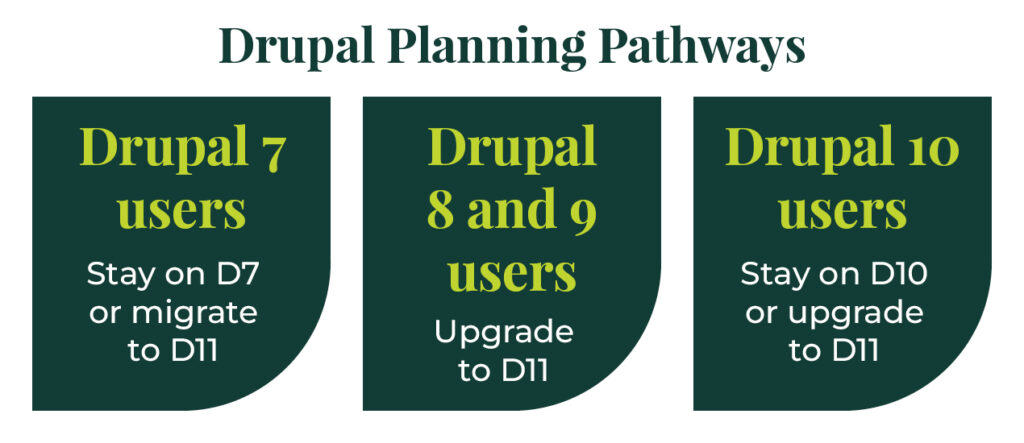
Your upgrade and maintenance process will differ depending on the Drupal version you’re currently using. This article explores the options available to Drupal users who intend to stay on the system.

Drupal planning pathways for Drupal 7, 8, 9, and 10 users (explained in the sections below)

Exploring Drupal 11

As mentioned, Drupal 11 was released in August 2024. Our recent blog post recaps everything you need to know about Drupal 11’s new features, including: 

  • The Drupal core Workspace module, which helps manage content changes by staging new content or previewing a major site overhaul.
  • Single-Directory Components that are now supported in core to provide a simplified front-end development workflow.
  • Navigation module that updates the admin toolbar with modern options.
  • Recipes API to help apply complex configurations.
  • Access policy API to build custom policies to accommodate a wide variety of access verification needs.

Drupal 11 has the same basic functionality as Drupal 10.3, which many sites were upgraded to in the spring of 2024. Drupal 11 was released to offer new features and eliminate deprecated code. 

So, how can you prepare for D11? No matter what Drupal version you’re currently using, we’ve got a planning and development roadmap for you. 

Drupal Planning: 7 to 11

Drupal 7’s end-of-life (EOL) date was adjusted to January 2025. Therefore, many D7 users have decided to stick with this version to give themselves more time to prepare for an eventual transition to a later version. 

Although you can remain on D7 for a while longer, now is a great time to transition to D11. Your D7 to D11 migration roadmap should include the following tasks:

  • Make a plan for content that can be retired from your site before moving to Drupal 11.
  • Map out how redirects will be handled for any content you remove from the current site to ensure your SEO isn’t negatively affected.
  • Review the modules you use in Drupal 7 and investigate the upgrade path needed for those modules to be compatible with Drupal 11.
  • Identify and recommend alternative modules, tools, or third-party services for modules that aren’t available for Drupal 11.
  • Look at the site’s content types and determine if anything needs to be changed or combined to meet your users’ needs and/or make the site easier to maintain. 

We recommend switching to D11 before D7 reaches its end-of-life (in January 2025) so you can continue benefiting from security team updates and fixes.. 

Drupal 8 and 9 Users

There’s good news and bad news for Drupal 8 and 9 users. Let’s start with the bad news: D8 reached its end-of-life in November 2021, and D9 reached EOL in November 2023. Drupal 8 and 9 are no longer supported and no more bug fixes or improvements will be released, so if your site is currently running on one of these versions, it’s more vulnerable to cyber-attacks and other security threats. 

Here’s the good news: if you plan to upgrade from D8 or 9 to 11, you are looking at a very simple, streamlined migration process.

Your Drupal development partners can create a roadmap with these elements:

  • Look for any deprecated code in your code base that may need to be updated for D11.
  • Make sure that the modules you use in Drupal 8 or 9 are compatible with Drupal 11, or have a target date for compatibility.
  • Ensure that the site’s configuration files are tidy so that it’s easy to export/import configuration during the upgrade.

Upgrading your D8 or 9 site to D11 as soon as possible will help you maintain its security and functionality.

Drupal 10 Users

If you’re currently using D10, you’re in a great position to migrate to D11. Support for Drupal 10 will end in 2026, so you still have some time to transition, but it’s never a bad idea to stay ahead of the curve to make the most of the new features available in D11.

You can prepare for D11 by staying up-to-date with bug fixes and other security updates. If you have custom code on your site, keep an eye out for deprecation notices as well, and update that code regularly to remove them. You can use Upgrade Status and Drupal Rector to identify modules and deprecated code that need to be updated. 

You’ll also need to update your website to the latest version of Drupal 10.3 because, as Drupal explains, “all core updates added prior to 10.3.0 have been removed. If any modules or themes have been removed you may use the respective contributed project instead.” 

Consider working with a web development consultant to help you stay on top of all updates. For instance, the Kanopi team offers website support services for all Drupal users. This includes:

  • Module and plugin updates
  • Bug fixes and security patches
  • Performance enhancements
  • Development modifications

Use this checklist to help ensure your organization is completely ready to migrate your site to a newer version of Drupal:

Drupal Migration Readiness Checklist

0% Complete

Exploring Kanopi’s Drupal Planning and Development Services

Kanopi can support your Drupal site until it’s ready for an upgrade, even if that means going beyond the end-of-life date of your current operating version. Instead of large structural changes, we recommend focusing on incremental changes that can be delivered with a potentially fluctuating budget, such as:

  • Improved navigation
  • Revised content strategy
  • New content curation
  • Accessibility support
  • Search engine optimization (SEO)

We can also provide a website growth plan for you, which typically includes: 

  • How to increase website conversions for your organization
  • Customization based on your unique situation
  • A breathing window to maintain your site ahead of a migration (if your site is operating on D7)

Along with our Drupal 7 maintenance package, we also have options for Drupal 8, 9, and 10 users to help create a game plan or launch a migration. 

Looking for more information to learn more about Drupal planning and development? These additional Kanopi resources can help:

A stethoscope sits on top of a laptop

7 HIPAA-Compliant Website Analytics Tools for Healthcare

Healthcare websites are subjected to a higher standard of data security than other organizations due to the sensitive nature of the information they have access to. With that in mind, your organization must use a HIPAA-compliant website analytics tool to avoid any potential violations of this law. 

This guide explores how HIPAA impacts healthcare websites and highlights seven effective analytics tools. 

What is HIPAA and how does it impact healthcare analytics tracking?

The Health Insurance Portability and Accountability Act of 1996 (HIPAA) requires healthcare organizations and hospitals to maintain the privacy and security of patient health data, known as “protected health information” (PHI). The law aims to “assure that individuals’ health information is properly protected while allowing the flow of health information needed to provide and promote high quality health care and to protect the public’s health and well being.” 

HIPAA helps protect patient privacy, control fraud, and establish national standards for electronic healthcare transactions. It applies to any form of data—written, spoken, paper, or electronic. 

HIPAA data protection requirements

HIPAA requires healthcare organizations to practice many physical and digital data security and privacy measures, including: 

  • Pointing computer screens away from public view
  • Locking computer rooms
  • Destroying sensitive data 
  • Conducting risk assessments with a HIPAA security officer
  • Not discussing patient information in public places
  • Using strong passwords
  • Sharing how patient data is used and shared outside your healthcare facility
  • Getting signed consent from patients to use or disclose their personal information

Website analytics tools track and measure online user behaviors using external software, so there’s a risk of disclosing sensitive information with a third-party organization in a way that violates HIPAA. 

That’s why many healthcare organizations seek HIPAA-compliant analytics tools to mitigate risks while still gathering the valuable website data they need to create a positive online experience. 

Features of HIPAA-compliant analytics tools 

To find a HIPAA-compliant analytics tool, make sure the platform you use:

  • Doesn’t share protected health information with non-compliant platforms
  • Offers a business associate agreement (BAA) outlining their roles and responsibilities in protecting patient data and ensuring HIPAA compliance
  • Allows you to not collect website visitors’ IP addresses
  • Encrypts sensitive data

7 best HIPAA-compliant analytics tools

Let’s review the top options for managing your healthcare website’s analytics tracking. These tools may also be useful for other industries requiring stricter data protections, such as higher education, airport, or government websites. 

Freshpaint

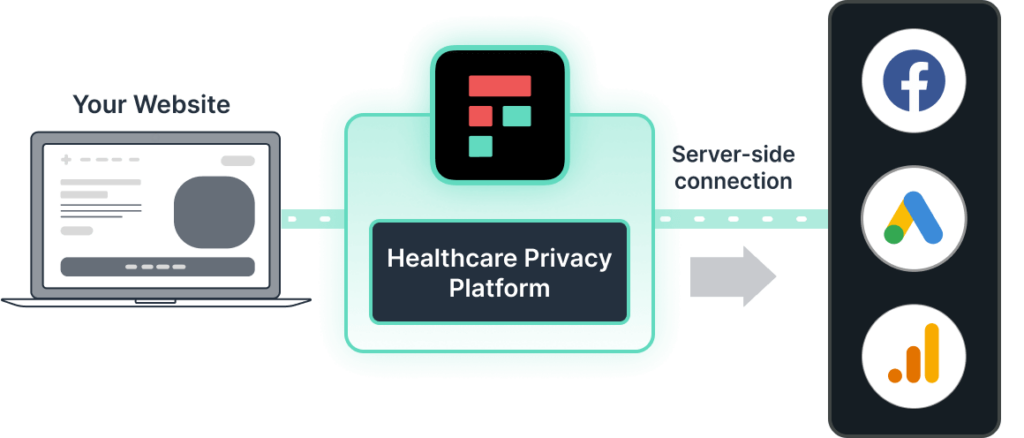
Image showing how Freshpaint uses its healthcare privacy platform to prevent private information from being shared with analytics tools

Freshpaint is a healthcare privacy platform. It prevents protected data from being shared with non-compliant technologies by centralizing all website visitor data into one secure platform supported by a BAA. 

Rather than requiring users to filter out sensitive data from being collected, the platform’s default approach is to not share sensitive information at all. You can use Freshpaint to block any HIPAA identifiers from being shared with Google Analytics. 

Instead, the platform creates an anonymous user ID and leverages irreversible cryptographic hashing to de-identify the user data. This way, you can still view complete visitor journeys without knowing each individual’s identity. 

Siteimprove

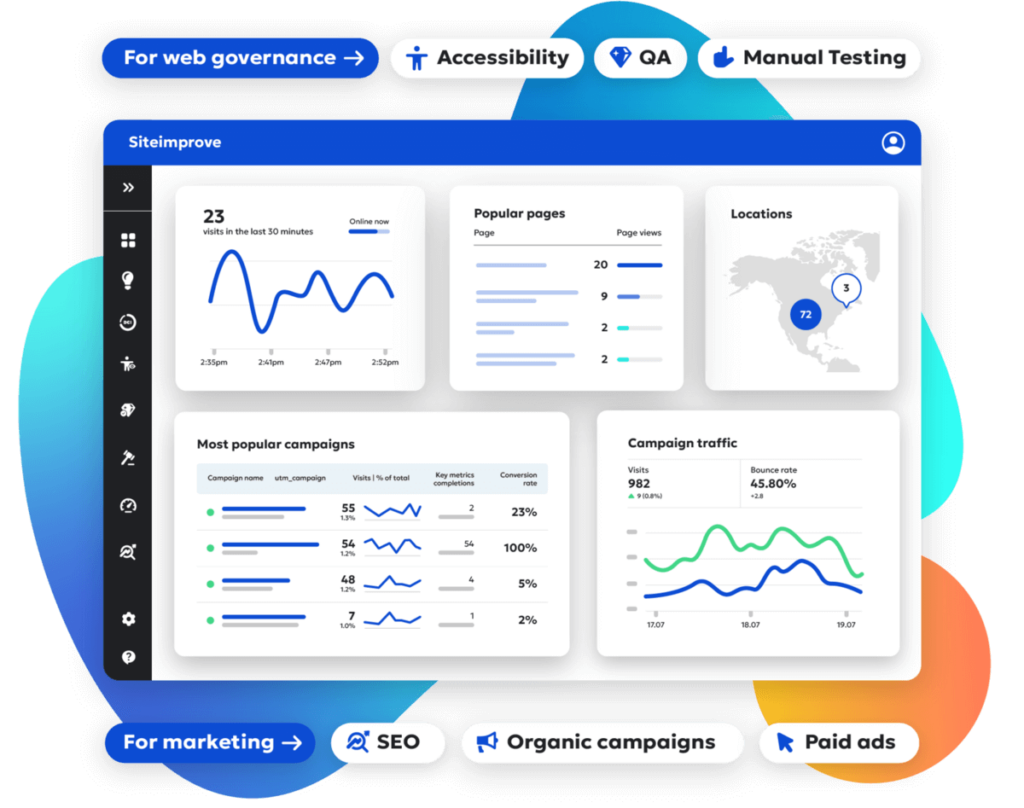
Product image for Siteimprove

Siteimprove offers both content and marketing analytics solutions. Users can ensure HIPAA compliance by enabling the platform’s IP Anonymization feature. Siteimprove also protects data with advanced encryption measures, such as managing their own encryption keys. 

Using Siteimprove, you can:

  • Track key KPIs
  • Monitor conversions
  • Gain real-time visitor insights
  • Analyze the complete user journey 

This solution makes it easier to design a more useful and engaging website for your audience. 

Piwik

Piwik homepage

Piwik provides a suite of analytics tools, including dashboards, customer journey optimization, and customization options. They offer two options for making their platform HIPAA-compliant

  1. De-identifying all PHI in your data
  2. Signing a BAA with Piwik

The platform fully supports either option. Users can also benefit from features such as secure hosting, safe backup storage, SOC 2 security standards, data encryption, and more. 

Heap

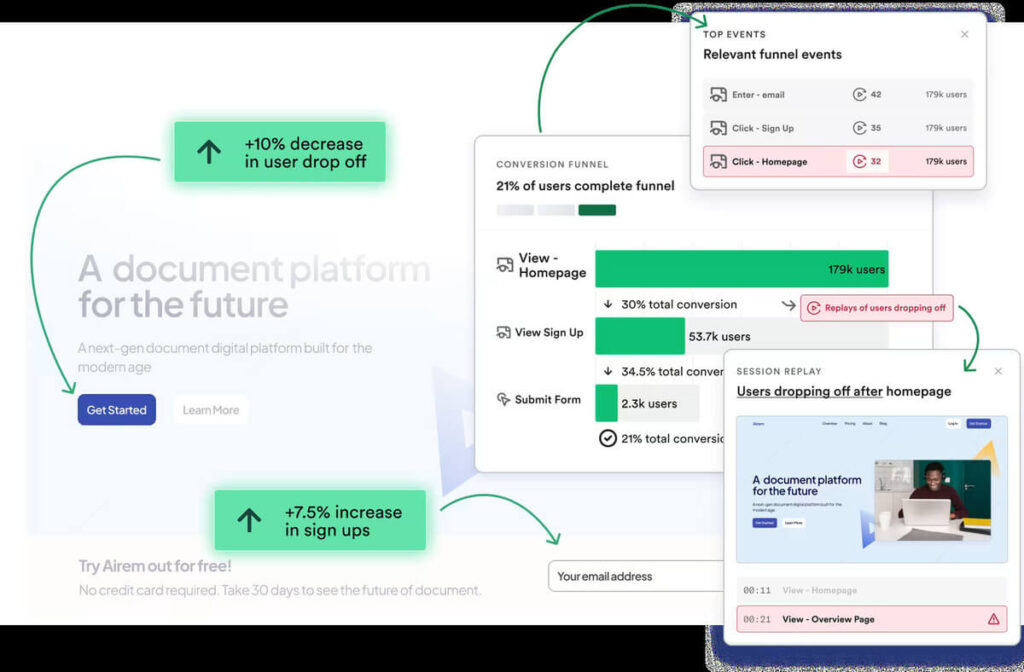
Product image for Heap

Heap’s analytics platform offers a variety of useful website insights, including:

  • User session replay
  • Website visitor heatmaps
  • Visual user journey maps
  • User segmentation capabilities

You can configure Heap to be HIPAA-compliant by blocking the collection of IP or geolocation information. Their tools are also designed to meet other security regulations like The General Data Protection Regulation (GDPR) and The California Consumer Privacy Act (CCPA). 

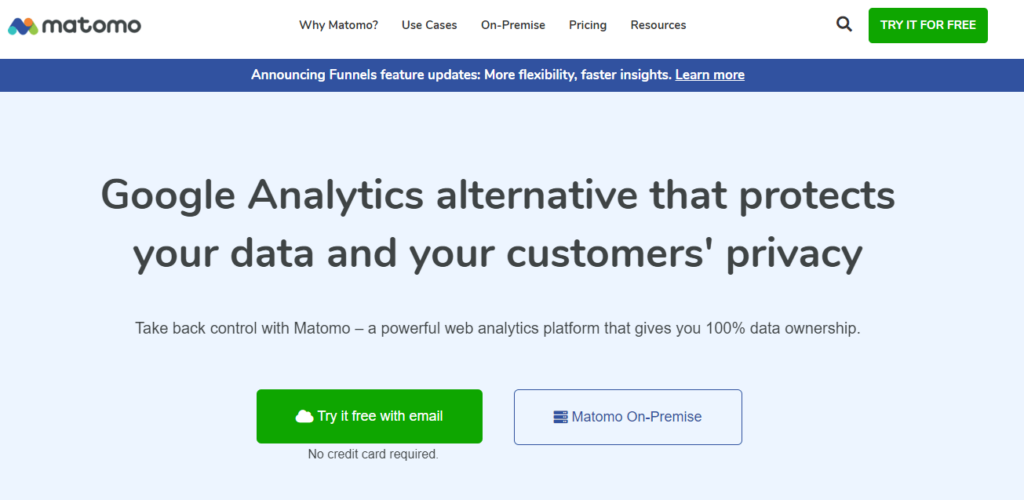
Matomo

Matomo homepage

Matomo’s analytics platform prioritizes data privacy to protect your organization’s reputation and maintain compliance. Similarly to Heap, you can configure Matomo to be HIPAA-compliant. The process requires multiple steps, which you can view on their website. The Matomo team can support the setup process through installation, configuration, and troubleshooting. 

Countly

Countly home page

Countly is a privacy-first product analytics platform built for web, mobile, and desktop apps. It’s popular in healthcare because it can be self-hosted, keeping sensitive data under your control while still offering rich analytics and engagement tools.

Features:

  • Full data ownership with on-premise or cloud hosting
  • HIPAA/GDPR-compliant by design
  • Funnels, cohorts, retention, and crash analytics
  • Engagement tools (push, surveys, A/B testing)
  • Broad SDK support for quick integration

Improvado 

Improvado homepage

Improvado is an AI-powered marketing analytics platform that offers marketing dashboards, customizable data visualizations, and AI insights. They offer BAAs to clients who are subject to HIPAA regulations. They also employ SOC 2 Compliance and safeguards for other data privacy regulations such as GDPR and CCPA.

PostHog

PostHog homepage

PostHog is a full-service platform for testing, deploying, and analyzing new website features. Their analytics features include:

  • Session replay
  • Feature flags
  • A/B testing
  • User surveys

PostHog can provide customers with a BAA to enable HIPAA-compliant use of their platform.

Wrapping up

Protecting your patients’ personal data is key to not only remaining compliant with industry regulations but also fostering trust in your community. Use this list as a starting point to understand your analytics options and find a solution that aligns with your needs and budget. 

Looking for more healthcare website resources? Start here:

Drupal and Wordpress Logos

Boosting Site Performance in Drupal and WordPress: Strategies to Try and Avoid

Performance is crucial for any website, and a website built with the Drupal or WordPress content management system (CMS) is no exception. Search engines prioritize mobile website performance, and users abandon websites that load too slowly, so ensuring fast loading speeds is essential.

While Drupal and WordPress offer a solid foundation, adding features, themes, and modules/plugins can slow down your site. In this blog post, we’ll explore strategies to improve the performance of your Drupal and WordPress sites and some pitfalls to avoid.

Measuring Performance with Google Pagespeed Insights

How fast is your site? Google Pagespeed Insights is an excellent tool for measuring performance. It provides Core Web Vitals and an overview score with recommendations for improvement. Focus on achieving a general site performance score of 80+ and passing all Core Web Vitals.

Strategies for Boosting Pagespeed

1. Cache and Aggregate

Caching can significantly enhance performance. WordPress Performance plugins can handle CSS/JS caching, while full-page and database query caching require additional plugins and fine-tuning for optimal results. Drupal, however, has these performance enhancements already baked into the CMS.

Consider using performance-oriented plugins on your WordPress site. Autoptimize, Phastpress, and Hummingbird are popular options that can significantly enhance site performance. 

Drupal handles this with its internal caching. Enable Drupal’s built-in caching for all your pages, blocks, and views, and enable CSS and JavaScript aggregation on the Performance page.

These plugins and configurations may require platform-specific adjustments or specific settings for certain hosting environments, so testing is crucial.

2. Choose a Good Hosting Environment

Shared website hosting can be affected by other websites, adversely impacting your page speed. Dedicated or managed hosting environments offer better performance at a reasonable cost. Providers like Pantheon offer dedicated hosting for Drupal and WordPress, whereas Acquia provides dedicated Drupal hosting. WPEngine and Kinsta provide dedicated WordPress hosting. Any of these managed hosting providers are an excellent starting point.

Managed hosting environments often provide their own caching mechanisms that are worth exploring for their known performance benefits.

Varnish, for example, can dramatically improve performance. Consider Memcached or Redis for faster, more scalable caching — especially with complex Drupal or WordPress sites.

3. Image Size Matters

Even Drupal and WordPress have limits when compressing large images. Upload images close to the required size or aspect ratio. Configuring Drupal and WordPress to resize images automatically is essential for a fast experience.

4. Optimize Images

WordPress and Drupal can generate adequately sized images for your website, but newer formats like SVG, WebP, and Avif offer better compression without compromising quality. 

WordPress plugins like WebP Express, ShortPixel, SVG Support, and Safe SVG can reduce image size quickly and offer SVG support. 

In Drupal, the SVG Image module lets you add support for SVG files to the standard image field. It also facilitates web image format conversion through a filter within Drupal core image styles, which you can configure according to your needs.

It’s equally important to ensure the image loads are sized appropriately for the device accessing your site. Whether using Drupal or WordPress, you’ll want to ensure that responsive images are set in the SRCSET or your IMG tag. WordPress typically adds responsive images by default. You can manipulate these defaults using the wp_calculate_image_srcset() and wp_calculate_image_sizes() filters outlined within the WordPress Developer Resources. In Drupal, we do this using the module Easy Responsive Images.

Lazy loading images is an effective way of deferring the load of images until they’re about to enter the viewport.

Optimizing video embeds is as effective as optimizing your images. With Drupal, we do this using the Lite Youtube Embed module, which allows the videos to be lazy loaded.

5. Avoid Too Many Scripts

Google Tag Manager makes it easy to add multiple scripts for user journey tracking — but too many scripts can hinder performance. Regularly review and remove unnecessary third-party scripts to optimize site speed. We wrote a blog post on how to improve performance in Google Tag Manager. 

6. Copy/Pasting? Clean Your Content

When copying and pasting text from another document, clean out extra metadata and styling. Drupal and WordPress can clean some of it, but it’s best to avoid loading unnecessary content. When possible, always paste text without formatting.
7. Update, Update, Update

Regardless of which platform you choose, it’s critically important to keep the content management system and its corresponding modules or plugins up-to-date. Drupal core and modules and WordPress core and plugin updates can offer performance and security fixes.

Be sure to keep PHP on the most recent stable version supported by Drupal or WordPress to benefit from performance and security fixes.

Strategies to Avoid

1. WordPress Page Builders

Avoid using page builders on the built-in WordPress block editor (Gutenberg). Gutenberg has improved site editing to the point where additional page builders — such as Elementor or Beaver Builder — are rarely needed. They can negatively impact site performance.

In Drupal, however, there is no equivalent page builder. It is important to use themes and modules that do not provide unnecessary bloat. 

2. Excessive Plugins

Many Drupal modules or WordPress plugins can have unnecessary features that slow down your site. If you only need one feature from a module or plugin that loads many others, consider finding a more lightweight alternative. The functionality provided by that one feature within that module or plugin may be able to be written within your theme or a custom Drupal module or WordPress plugin for a more performant and secure site.

It’s always essential to audit your Drupal modules and WordPress plugins regularly. We would recommend quarterly. Disable unnecessary Drupal modules and WordPress Plugins that consume resources, and consider removing them from the code base completely where possible.

3. Frameworks and Bloated Themes

Adding frameworks like Bootstrap, icon packs, and fonts to a theme can increase CSS and JS bundle size. If you can’t optimize these effectively, stick to creating what you need on an existing theme. Less is definitely more in this case.

The payload of CSS for what loads above the fold on a page can be managed using Critical CSS. 

Some parting advice:

Write efficient custom code in your theme and Drupal module or WordPress plugin to ensure it is optimized for performance. If you’re a developer,  disable caching and aggregation when developing to avoid issues. 

As always, test, test, and test again. Test the site under heavy load to simulate real-world scenarios to uncover bottlenecks, and use third-party services such as New Relic to help dig into these bottlenecks.

Drupal and WordPress provide a solid foundation for performance, but modules, plugins, themes, and functionality can reduce site speed. Monitoring performance is crucial — and pairing it with continuous optimization is essential. For more advanced assistance, feel free to get in touch; we’d be happy to provide expert advice, and even a few performance improvements.

Did you know that Shane is our very first Kanopi employee, ever? If you’ve enjoyed reading his post, please check out his other great works in our blogosphere, such as: 

Drupal Logo

The Comprehensive Guide to Drupal Recipes

At the keynote speech at DrupalCon 2022, Dries Buytaert, the founder of Drupal, presented the idea of “Starter templates” to help ambitious site builders quickly and easily create solutions. From that, the Distributions and Recipes initiative was born.

Drupal recipes are the foundation for the new Starshot Initiative, which aims to make Drupal easier to use and out of the box for all users. It took a couple of years, but Recipes have been added to Drupal core in 10.3 as Experimental APIs.

(If you prefer webinars, I gave a webinar on Recipes, Starshot, and the future of Drupal. Check it out.)

The Problem

For decades, developers have been packaging functionality together for Drupal to create different solutions, such as eCommerce stores, blogs, LMS, social media, and publishing sites. Many approaches were taken, each with its own pain points.

Installation Profiles

  • You can only start with them.
  • Once you start with them, you are stuck with them forever!
  • You can’t change to a different install profile.

Distributions

  • Complex dependencies that need to be maintained
  • Updates could break customizations
  • Would be hard to get solutions into Drupal core.

Features and Custom modules

  • As with the above, these often become complex and hard to manage.
  • Need update hooks or manual steps to alter core and other contrib module’s configuration.

The Solution

An issue has been created to add four new APIs to Drupal that will allow Recipes to be applied to Drupal. These recipes allow Drupal module automation, theme installation, and configuration at any time during the lifecycle of a Drupal site. They can install modules, import configuration, alter existing configuration, and even provide content to a Drupal site. Recipes are ephemeral; once applied, the results become the site’s responsibility.

What makes up a Drupal Recipe?

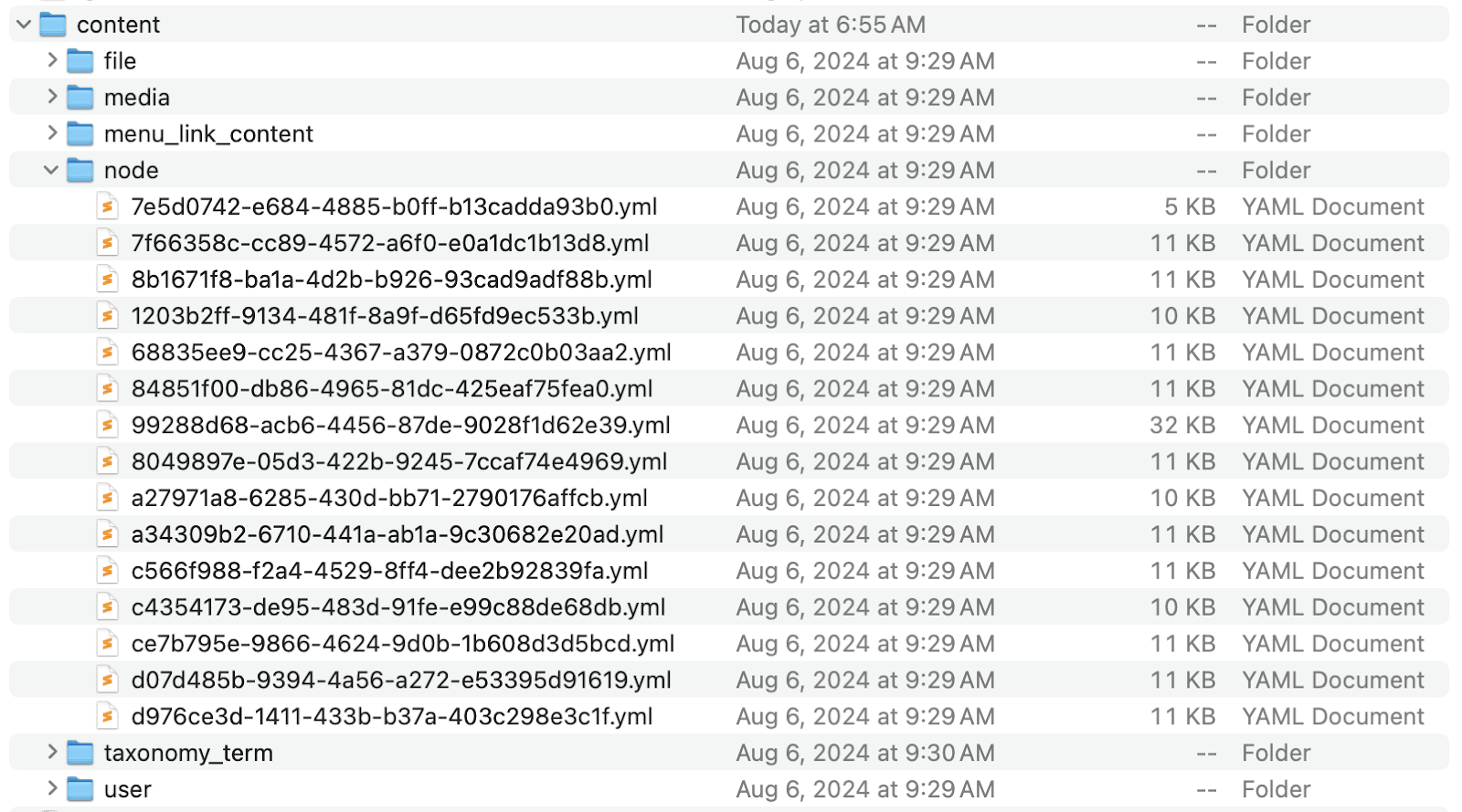
A recipe needs only a folder with the recipe’s name, which contains a recipe.yml file.  Beyond that, optional items are a /config folder, a /content folder, and a composer.json file. You can also include README.md and LICENSE.md files like a module or theme.

Recipe structure

  • recipe_name folder
    • recipe.yml
    • /config folder
      • node.type.event.yml
    • /content folder
    • composer.json

recipe.yml structure

name: 'Event'
  type: 'Content type'
recipes:
  event_manager
install:
  datetime_range
  node
config:
  actions:
    user.role.event_manager:
      grantPermissions:
        'delete any event content'
        'edit any event content'

What can’t a Recipe do?

To keep things functional and sustainable, recipes can’t do certain things.  For instance, recipes can’t…

  • Have their own code. If you need code, have your recipe install a module with that code.
  • Make dynamic changes.
  • Provide their own upgrade path (functionality is now part of the site).

Applying a recipe to an existing site

Recipes are applied to Drupal, not installed. Until the code is merged into Drupal core, you need to patch Drupal.  Patches can be found here on the project page.

Once you’ ha’ve patched your Drupal core version, you can use the internal script to apply a recipe to an existing site. On your command line, run the following command from your webroot:

php core/scripts/drupal recipe core/recipes/standard -v

This command uses PHP to find the “recipe” script in core/scripts/drupal. Then list the full path to the recipe. The -v flag has the recipe runner output the application steps as they happen on the command line. 

Once you apply the patch, you will get Drupal recipes from core! Core’s recipes currently include the Standard installation profile recreated as recipes. You can apply Standard and get all the functionality or apply them individually as needed. They were created to be very atomic — so that you can choose your own adventure.

Applying a recipe using Quick Start

Another Drupal script allows you to install Drupal from a recipe. When you do this, you do not start from an install profile! This is a new change. Previously, you at least had to start with a minimal profile; now, that is no longer needed.

If you’re starting a new Drupal install, you can use the following script:

php core/scripts/drupal quick-start core/recipes/article_content_type

The new Recipe APIs

The core of the recipe’s code are four new APIs.

  • Drupal\Core\Config\Action
  • Drupal\Core\Config\Checkpoint
  • Drupal\Core\Recipe
  • Drupal\Core\DefaultContent

The Recipe API depends on DefaultContent, Action, and Checkpoint. The other three APIs have no interdependencies.

Drupal\Core\Config\Checkpoint

A checkpoint is made for the site’s configuration when a recipe is applied. The recipe runner uses this to revert if the application fails, but there may be other uses for this in the future, like unapplying a recipe.

Drupal\Core\DefaultContent

This API’s code came from the contributed Default Content module. It allows recipes to provide content to Drupal using YAML files.

Drupal\Core\Config\Action

The Config Action API is the magic of the recipe system. It allows you to alter configurations already in a site, including core’s configs!

Drupal\Core\Recipe

Finally, the Recipe API puts it all together and applies the recipe. The recipe runner takes a recipe, and follows the following steps:

  1. Applies dependent recipes
  2. Install modules and themes
  3. Imports configuration from the /config folder
  4. Alters configuration based on actions
  5. Imports content from the /content folder

Deep Dive into an Actual Recipe

This recipe creates two fully configured content types. It includes meta tags, paths, configured admin forms:

name: 'Saplings - Content types'
description: 'Configuration for the Saplings Content types.'
type: 'Site'
# Here we require other dependent recipes.
recipes:
  - saplings-content-base
  - saplings-component-types
# Now we install modules.
install:
  # Core.
  - menu_ui
  - tour
  # Contrib.
  - access_unpublished
  - field_group
  - metatag_open_graph
  - metatag_twitter_cards
  - pathauto
  - publication_date
  - scheduler
  - scheduler_content_moderation_integration
  - schema_article
  - simple_sitemap
  - token_or
  - ui_patterns_layouts
config:
  # Now can import configuration
  import:
    # Core.
    menu_ui: "*"
    # Contrib.
    access_unpublished: "*"
    pathauto: "*"
    # If we only want to import certain configs, we can identify them like this.
    scheduler:
      - scheduler.settings
      - views.view.scheduler_scheduled_content
  # Config actions are where we can change configuration in Drupal 
  actions:
    # Set Metatag Home page:
    metatag.metatag_defaults.front:
      simple_config_update:
        tags.canonical_url: '[site:url]'
        tags.description: '[node:sa_description|node:sa_seo_description]'
        tags.image_src: '[node:sa_seo_image:entity:field_media_image:sa_social_media_facebook|node:sa_featured_image:entity:field_media_image:sa_social_media_facebook]'
     tags.og_description: '[node:sa_description|node:sa_seo_description]'
    # Set permissions for anonymous role.
    user.role.anonymous:
      ensure_exists:
        id: anonymous
      grantPermissions:
        - 'access content'
        - 'access sitemap'
        - 'access_unpublished node sa_page'
        - 'access_unpublished node sa_post'
    # Set permissions for content editor role.
    user.role.content_editor:
      ensure_exists:
        id: content_editor
      grantPermissions:
        - 'access administration pages'
        - 'access block library'
        - 'access content overview'
        - 'access environment indicator'
        - 'access environment indicator ribbon'
        - 'access help pages'
        - 'access media overview'
        - 'access media_entity_browser entity browser pages'
        - 'access media_entity_browser_modal entity browser pages'

What are Config Actions?

As you can see in the recipe example above, you can import config from modules and themes, and take action against config that already exists. Config actions are written to make specific changes to config files — including Drupal core configuration files, which previously could only be done through update hooks.

Look for this list to update as the initiative digs into phase 2 and creates more recipes and possibilities.

Available to all config entities

simple_config_update

This is a config action that can be used to make foo: bar type updates to any configuration file.

setThirdPartySetting(s)

The setThirdPartySetting(s) config actions allows recipe authors to set third-party

settings values.  Add the ‘s’ to apply multiple third part settings.

ensure_exists

This action can be used to ensure as a user role exists before applying other actions.  It helps a recipe not fail if the role does not exist.

create

The create config action can be used to create a config entity, but it is much easier to just put the config file in the /config folder.

Applicable to specific config entity types

addItemToToolbar

Used to add a button to the toolbar of a CKEditor 5 editor.

addToAllBundles

Used to add a field to all bundles of an entity type. Should be used in combination with setComponent(s) below to make sure the field displays on forms and displays.

addNodeTypes, addTaxonomyVocabularies

Used to add editorial workflows to node and taxonomy bundles.

grantPermission(s)

Used to grant permissions to any user.role.* config files.  Add the ‘s’ to add multiple permissions.

setComponent(s)

Used to to add fields to an entity’s view or form display configs.

What’s next for Drupal Recipes?

Now that recipes are in Drupal core, the phase 2 of the roadmap will soon be updated. Integration with Project Browser, and recipe creation in Starshot are definitely on the top of the list, but there are lots more things to do.  Stay tuned and check out the issue queue to learn more!

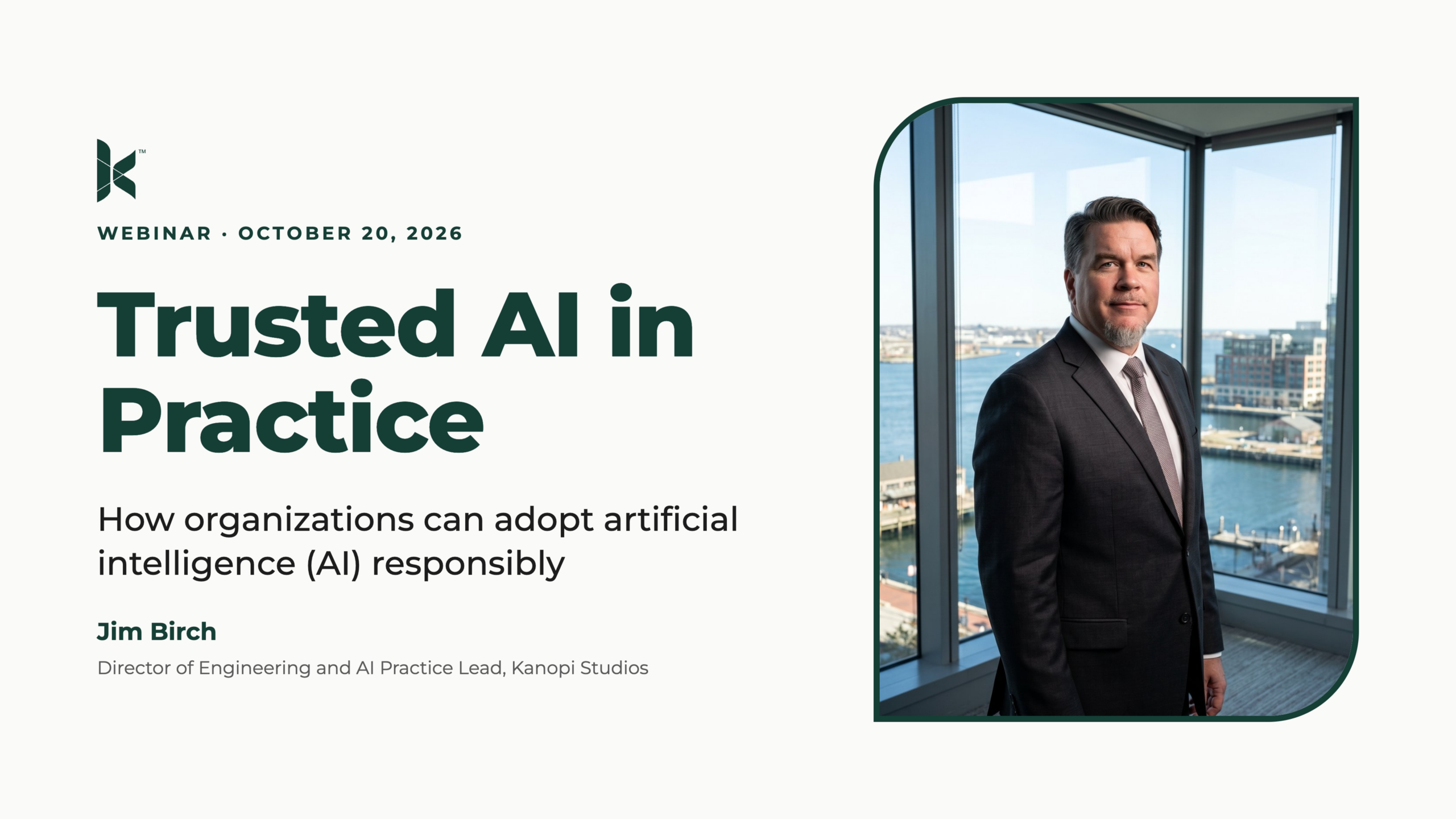
Want to learn more via an on-demand webinar?

View Jim’s on-demand webinar on Drupal Recipes and Starshot.

Screenshot from Jim Birch's webinar on Drupal recipes and Starshot
Close up of a laptop with one person's hands on the keyboard, while the other person's hand is pointing at the screen.

The Ultimate Drupal 7 to 10 Migration Guide for Marketers

This post was last updated in September 2024 to incorporate information about the recent release of Drupal 11. 

Kanopi is a Drupal Certified Partner and can help with your migration needs.

Drupal users were delighted when Drupal 10’s release in 2022 introduced many changes and improvements to the platform. Now, the latest version of Drupal, Drupal 11, is available after its launch in August 2024. As a Drupal 7 user, you may be wondering what this means for your website. 

Keeping up with new Drupal releases ensures that your site is secure and that it benefits from the latest advanced functionality. Ultimately, this allows you to serve your website’s audience more effectively. 

As a marketing manager or CMO for your organization, it’s important to understand the steps of the Drupal migration process so you can effectively work with your developer while they upgrade your site. This guide covers what you need to know to prepare for a Drupal 7 to 10 migration (and an eventual upgrade to Drupal 11). 

FAQs about the Drupal 7 to 10 Migration

Let’s start with a few fast facts and frequently asked questions about Drupal 7, 10, and 11. 

When was Drupal 7 released?

Drupal 7 was released on January 5, 2011. 

How long will Drupal 7 be supported? 

Drupal 7’s end-of-life date is set for January 2025. After this time, Drupal 7 will no longer receive many bug fixes or security patches. By staying on Drupal 7, you could also risk having faulty modules. Plus, you won’t be able to take full advantage of the new features available in Drupal 11. 

When were Drupal 10 and 11 released?

Drupal 10 was released in December 2022, and Drupal 11 was launched in August 2024. 

What new features are included in Drupal 10 and 11?

Drupal 10’s updates reflected ongoing efforts to modernize the back-end editing experience and provide a streamlined front-end user experience. Specifically, Drupal 10 offered these upgrades and new features: 

  • New default administrative theme. The Claro administrative theme is modern, mobile-friendly, and optimized for accessibility. 
  • New default frontend theme. The new Olivero front-end theme also prioritizes accessibility and modernity alongside a streamlined and elegant color palette, form builder, and typography. 
  • Upgrade from CKEditor 4 to CKEditor 5. CKEditor 5 facilitates a streamlined author experience with the ability to track editing histories, collaborate in real time, and easily import content from Word. 
  • More modern JavaScript elements. Drupal 10 swaps large jQuery elements with more performant solutions. 
  • Upgrade from Symfony 4 to 6 and upgrade to PHP 8. This represents a significant improvement to the PHP scripting language. 

Drupal 11 builds on these features with additional functionality to improve the development experience with flexibility, streamlined workflows, and better content governance. Developers were especially excited about these new features:

  • The new experimental Recipes feature, which helps easily apply complex configurations.
  • Robust content staging through Workspaces tools that allow developers to Stage new content or preview a full site overhaul by using multiple workspaces on a single site. 
  • Single-Directory Components that simplify front-end development.

Drupal 11 will receive new features every six months, so you can expect more exciting features to come.

When should I switch to Drupal 10? 

You should consider switching to Drupal 10 as soon as possible to take advantage of the updated features. Plus, you’ll need to upgrade to Drupal 10.3 before you can migrate to Drupal 11. According to Drupal, “Drupal sites running 10.2.x or earlier versions must first update to 10.3.0 or later prior to updating to Drupal 11, because all core updates added prior to 10.3.0 have been removed. If any modules or themes have been removed you may use the respective contributed project instead.”

In addition, Drupal 7 will no longer be supported after January 2025, so it’s a good idea to plan your migration before then. 

Steps of the Drupal 7 to 10 Migration

So, what will the Drupal 7 to 10 migration actually look like? It’s recommended to work with a web developer during this stage. This may either be your organization’s internal web developer or a third-party web development firm.

As a marketing professional, you will mainly play a supporting role in the Drupal 10 migration process. You can help ensure that your site’s SEO rankings are maintained, check that your site’s themes and modules are updated regularly, and run regular tests to ensure a high level of performance. The developer will handle the more complex technical aspects of the migration process. 

However, it’s still helpful to understand what exactly goes into a migration and how you can support the development team throughout the process. 

With that in mind, here are the steps you and the developer will take throughout the upgrade process. These steps will help prepare your site for newer Drupal versions.

1. Audit your Drupal 7 site. 

A site audit allows you to optimize your Drupal website for performance and security as well as identify data and content types to migrate to your new site. 

During an audit, a developer will identify the following elements to prepare them for the migration:  

  • The content types and structure of your current site. In this stage, you’ll define all of the data that will migrate to the new site and eliminate any broken or unnecessary code. 
  • The functionality of the Drupal 7 site that needs to be recreated in your new Drupal 10 site. The developer will note any features that will have to be manually redeveloped. 

2. Identify necessary redirects for content you’re removing from your site to maintain SEO rankings.

Identify top-performing content and determine whether you’ll need to implement a redirect to maintain SEO performance. 

3. Create a backup site copy.

This copy will serve as a migration source and provide a resource for you to reference after your new Drupal 10 site goes live. You can compare your Drupal 10 site to the copy to ensure that everything is in the right place and make adjustments as needed. 

4. Review hosting for technical requirements needed for Drupal 10.

Ensure your website host can support PHP 8.1’s minimum technical requirement. You can also review your host for performance elements such as speed, security, and reliability. 

In addition, your developer will ensure that your host provides options for development workflows and site testing. This allows you to stage your site and test new elements and features without affecting the live production environment. 

5. Migrate your site’s content. 

Content migration informs the structure of the new site, making it the first step in the migration process. Plan your content strategy by determining which content types you’d like to maintain or alter. Then, your developer will initiate the process of migrating your data to your new Drupal 10 site. 

6. Upgrade your themes and modules.

Modules are foundational elements of your Drupal website that extend its functionality. Your developer will take the following steps to upgrade your modules and themes in Drupal 10: 

  • Replace contributed modules with their modern counterparts.
  • Identify custom modules and code, verify the functionality required in the new site, and rebuild them.
  • Rebuild the theme using the more modern Twig framework.

7. Finalize migration, deploy, and run tests. 

Run both automated and manual tests to check your new site. For example, the Kanopi team uses automated code-checking tools like PHPstan and Drupal Rector. These tools allow you to see if your code is functioning as expected. 

We also recommend performing manual tests that replicate the user experience. Test your forms, links, navigation, and other site elements to catch any issues and correct them before promoting your new site to audience members. 

How a Drupal development expert can help

As mentioned, working with a Drupal developer will make your migration experience smooth and painless. When finding a Drupal development partner to work with, seek experts that can: 

  • Facilitate a smooth migration process, taking care of the technical details and maintaining data integrity. 
  • Prioritize accessibility, ensuring all aspects of your Drupal 10 site comply with the Web Content Accessibility Guidelines (WCAG). 
  • Develop custom modules to ensure that your Drupal website has all the features it needs to serve your audience members effectively. 
  • Craft a search-engine-optimized website that helps your content appeal to search engines and visitors. 
  • Implement third-party integrations such as payment processors, security portals, and other tools your organization uses. 
  • Construct a mobile-responsive theme that ensures your website looks and works great on mobile devices. 
  • Provide ongoing support, updating content, implementing security updates, and managing performance upgrades as needed. 

When searching for the right Drupal partner, it’s helpful to find an organization with experienced developers who contribute to the Drupal project on an ongoing basis. For example, Kanopi Studios offers Drupal development services for all types of organizations, including nonprofits, corporations, healthcare organizations, and higher education institutions. 

Each of our Kanopi team members has an average of 11 years of Drupal development experience and several of them are Acquia-certified. We also are a supporting partner to the Drupal Association and regularly contribute to the Drupal Project.


By following these steps and providing your developer with context and insight into your website strategy, you can make the Drupal 7 to 10 (and eventually 11) migration simple and painless. Contact the Kanopi team today if you’re ready to launch the migration process. 

Looking for more Drupal development and migration resources? Check out these Drupal guides:

Wordpress Logo

The Pros & Cons of WordPress Multisite

Photo of Miriam Goldman
Miriam Goldman

What is WordPress Multisite?

WordPress Multisite is a configuration that allows multiple WordPress sites to be bundled together into one instance. (And for those who don’t know, a ‘configuration’ refers to the setup and arrangement of settings within a WordPress website. Apologies if I already lost you there!) It shares the same code base and databases, which means that administrators need only one sole login to manage multiple sites — and only one login URL (this is similar to how Drupal’s Domain Access works. Here’s how we used it with a Drupal client).

Configurations like Multisite have become very popular, so we thought we’d write a post that explores the two most common use cases, how we’ve used it for one of our clients, and a few pros and cons to consider as well.

Use cases: functionality and branding

With a diverse range of features like network-wide plugin and theme management, Multisite is a viable option for anyone looking to streamline website administration and reduce overhead costs. For the sake of this post, let’s look at a couple of use cases where it’s particularly helpful: 

  1. For managing multiple sites with similar functionality. Plugins can be shared across the subsites — and if there’s custom code, it can easily be accessible. IOCDF (https://iocdf.org) has a Resource Directory that can be shared across its different child sites. 
  2. To maintain consistent branding. I would argue that this is its strongest use case — for clients who need to launch multiple websites that share the same branding. In fact, this is the reason we implemented Multisite for our client First Tee when we built them a new WordPress site. I encourage you to check out the full case study here

WordPress Multisite: the pros…

  1. A shared codebase makes it easier to update themes and plugins. Rather than having to do it across multiple sites, you only have to do it once.
  2. Thanks to the shared codebase, only one sole backup is needed, rather than multiple backups per site.
  3. Plugins for syndication allow for content to be shared across multiple sites in the network.
  4. Administrators only need one login. For many admins, this is reason #1 to seriously consider Multisite.

…and the cons.

  1. If there are too many sites within the network (e.g.: 1000 or more), it can cause database bloat and slow down your server.
  2. If one aspect in a theme is updated, it can potentially cause regressions across sites in the network that share the same theme. 
  3. WordPress Multisite requires a ‘Super Admin’ or Network Administrator to effectively manage the network and its sites. The Super Admin has the highest level of administrative control, with the authority to manage sites, install plugins and themes, and grant or restrict permissions across the network. This can sometimes be confusing for regular administrators who may not understand why their permissions are limited. 
  4. Not all plugins are compatible with a multisite setup. Also, certain premium plugins may require a license per subsite — the cost of which can quickly add up.
  5. Hosting costs can sometimes increase with Multisite, as the network could potentially use more resources.

Where to find more info

The WordPress Handbook is a great resource to learn more. Hosting providers like WPEngine and Pantheon can provide helpful information as well.

Need more help? Our team of seasoned WordPress developers has experience implementing Multisite for our clients, including not only First Tee but also the Children’s Organ Transplant Association, the International OCD Foundation, and others. Whether you’re considering a switch to WordPress or you’re just looking to get more from your existing site, we’d be happy to discuss your options. All you need to do is drop us a line.

Kanopi’s Drupal development services focus on creating functional, sustainable Drupal websites.

The Ultimate Website Maintenance for Nonprofits Checklist

When you first designed your nonprofit’s website, you probably thought it was made to last. You chose an evergreen design, incorporated uniform branding, and optimized your donation page to drive conversions. In the excitement of getting your site up and running, you may have let nonprofit website maintenance concerns fall by the wayside. 

You might be surprised to learn that the average website lifespan is just two years and one month! After this time, your design could become outdated, your messaging could use a refresh, and your CMS may need a core update. 

This guide offers best practices for keeping your nonprofit website in top shape and outlines the benefits of regular website maintenance. Here’s what we’ll cover: 

Nonprofit website maintenance is so critical because even minor tweaks to your layout, content, text, and imagery can make all the difference in encouraging someone to donate. Let’s start by reviewing a checklist of maintenance tasks. 

Nonprofit Website Maintenance Checklist

What should you check for when performing website maintenance? Use this checklist to ensure you don’t forget anything when refreshing your site:

Nonprofit Website Audit Checklist

Website Strategy
User Experience
Nonprofit Messaging
Social and Events
Multimedia Content
User Journey
Technical Elements

Need Expert Help Maintaining Your Website?

Ensure your nonprofit platform stays safe, quick, and operational year-round.

Contact the Kanopi team for support

Website Strategy

  • Do you have clear goals for your site?
  • Do you have effective ways to track user engagement, both at the macro and micro level? (i.e. analytics tools, heatmaps, surveys, etc.) 
  • Is your site accessible? What is your current WCAG conformance level and your goal level?
  • How does your site perform on mobile?
  • How does your site compare to your competitors’ sites? Are there opportunities to learn or go beyond what they’re doing?
  • Does your site include a user-friendly, mobile-optimized donation process that makes it easy to give?

User Experience

  • Do you know who your current users are and their needs? Are your UX personas up to date and relevant to your current audience’s characteristics? 
  • Are there additional user types you need to target? Do they utilize different pathways?
  • Does your site’s menu and its groupings make sense to your users?

Nonprofit Messaging

  • Is your nonprofit’s story and case for support clear and compelling?
  • Does your site tell your nonprofit’s story through more than just words, using multimedia elements like images, videos, and audio clips? 
  • Do all website pages reflect your nonprofit’s unique branding, with your logo, brand colors, and fonts? 
  • Are your calls to action (CTAs) engaging, with action-oriented language such as “Give Now” or “Join the Fight”? Do they tell people what to do and why in the most direct way possible? 
  • Do you have a consistent tone of voice and style? Does all of the content on your site reflect this? 

Social and Events

  • Have you incorporated social media or newsletters to enhance the omnichannel experience?
  • Do you have a clear editorial calendar and a consistent blog posting schedule? 
  • Are you staying on top of relevant current events and reflecting this in your site’s content? 
  • Is your event calendar easy to find and updated with accurate logistical information? Do events have a ‘save to calendar’ option? 

Multimedia Content

  • Do your image choices represent your brand? 
  • Do your images reflect the diversity of your nonprofit’s community?
  • Does every image have accurate and descriptive alternative text? 
  • Are you taking advantage of video content and providing opportunities for supporters to share your videos?
  • Do your videos have accessibility necessities such as pause buttons and captions? 
  • Are you making use of other media types, such as interactive quizzes or infographics, that drive engagement and increase time spent on the page? 

User Journey

  • Is it clear to a new user why they should want to engage with your nonprofit, from whichever page they enter your site on? 
  • Do your top landing pages have clear user pathways for both macro and micro conversions? For example, macro conversions could include donating, while micro conversions might involve signing up for your email newsletter or following your nonprofit on social media. 
  • Is your bounce rate within industry norms? Nonprofit websites have a 60-70% bounce rate on average (for context, 40% or lower is typically considered a good bounce rate). 

Technical Elements

  • Is your CMS up to date and secure?
  • How fast is your page load speed?
  • Do you have any broken links?
  • Are all of your forms working and formatted correctly?
  • Are buttons easily clickable from laptops, tablets, and mobile devices?
  • How is your site performing for SEO? Are you receiving high-quality backlinks from reputable websites?

Your answers to these questions can clue you into whether it might be time to update your website and which areas have the greatest opportunity for enhancement. 

Website Maintenance Best Practices for Nonprofits

From assessing growth metrics to ensuring your site complies with new regulations, we’ve rounded up some best practices to follow for effective and sustainable nonprofit site maintenance. 

Take a continuous improvement approach

Similarly to taking your car in for maintenance checks to keep it safe to drive and in good condition, your nonprofit website needs regular maintenance to ensure it’s meeting users’ needs and helping you advance your mission.

However, this process entails more than just security updates and updating plugins or modules. We recommend taking a continuous improvement approach to maintaining your nonprofit site, with design and development improvements that allow for growth and flexibility beyond basic fixes. 

While traditional website design follows a linear approach from strategy to implementation, continuous improvement allows for a circular, iterative process.

Traditional vs continuous improvement website maintenance approach

This method allows nonprofits to create flexible websites that are constantly tested and optimized over time. With this approach, your organization can continually accept and assess feedback from analytics, heatmaps, and user surveys. Then, you can immediately implement new strategies based on this feedback without having to wait for a major refresh project. 

A continuous improvement approach helps avoid enormous update projects that can take months and cost your organization hundreds or thousands of dollars to complete. Instead, you’ll make small improvements over time that keep your site healthy and current, saving you time, money, and major headaches down the line. 

Measure growth using KPIs

You can’t celebrate your successes or mark major milestones without having a clear picture of how your site is performing. To stay up to date on your site’s performance, monitor key performance indicator (KPI) metrics such as:

  • Time on site
  • Bounce rate
  • Number of pages visited
  • New vs. returning users
  • Traffic sources

You may also want to review data from your CRM to answer the following questions:

  • Who is donating? 
  • How often are they donating? 
  • Are repeat or “lifetime” donors on the rise or fall? 
  • What are donors’ preferred donation and communication methods?

Assessing CRM data alongside website analytics will help paint a complete picture of who your donors are and how your site is currently meeting their needs. For example, when you know donors’ preferred donation methods (such as credit cards, digital wallets like Venmo or PayPal, or ACH payments) you can make sure to include those payment types on your online giving page. 

In addition, if you discover that donors’ preferred communication platforms are social media and email, you can focus your marketing efforts more heavily on those platforms to help drive site traffic. 

Keep timely elements updated

Regularly update your event calendar and sync your news and social media feeds to ensure your site remains engaging and relevant. This way, you provide up-to-date information to your users across all of your online channels. Create an editorial calendar to help stay on track, and use automated social media and email marketing tools to schedule your posts in advance.

Regularly update your CMS

Whether you’re using Drupal, WordPress, or another CMS, you’ll need to follow certain steps to keep your site updated, optimized, and secure. If you don’t regularly update your CMS, you could face risks like hacking or loss of functionality. 

Kanopi offers services for both Drupal and WordPress updates. Here’s what maintenance looks like on these platforms: 

  • Drupal maintenance involves running Drupal core updates, consistently backing up your site, running module and theme updates, optimizing caching, and fixing bugs.
  • WordPress maintenance requires backing up your site, updating WordPress core, running theme and plugin updates, and optimizing your website’s database. 

Keeping your CMS platform up to date is essential to maintaining supporters’ trust and offering a seamless website experience. Work with a web design professional who can help create a regular schedule for updating your CMS and migrating your site to a new version as needed, like if you need to migrate to Drupal 10

Stay up to date with relevant laws

Data privacy laws are becoming more and more common as states seek to protect consumers from data misuse. New legislation for states like Texas, Oregon, and Florida is set to take effect this year. In addition, the California Consumer Privacy Act (CCPA), one of the first comprehensive consumer privacy laws in the U.S., has been on the books since 2018.

These laws all have similar provisions, such as: 

  • Consumers must be able to know what data is being collected from them. 
  • Consumers must be able to opt out of data collection. 
  • Businesses must delete data they’ve collected about consumers upon request. 

Staying up to date with new legislation can be tricky and time-consuming, so it’s helpful to partner with a trusted web design agency whose business it is to know the latest regulations and law changes affecting nonprofit sites. 

Reinforce trust with your audience by offering a clear privacy policy on your nonprofit’s website to let supporters know how you use data and how they can opt out of the collection process. Review examples from top nonprofit websites like the Leukemia and Lymphoma Society or Habitat for Humanity to get an idea of what these policies look like. 

Ensure your site is mobile-friendly

57% of nonprofit website traffic comes from mobile devices, making it critical to refresh your site’s mobile version during the maintenance process. Ensure your buttons are large and easy to touch from a phone screen, your mobile site menu is easy to navigate, and your forms are simple to complete from a mobile device. 

Continually test website forms

Users should be able to easily complete any forms on your website, whether they’re using a mobile device, tablet, or computer. Test the following forms and buttons on different devices: 

  • Donation page
  • Volunteer registration form
  • Quizzes and polls
  • Feedback surveys
  • Call to action buttons

Your forms should also be accessible, with sufficient color contrast and descriptive text that appears outside the form fields. We’ll spotlight additional accessibility best practices in the next section. 

Keep accessibility best practices in mind

Accessibility best practices constantly evolve as new assistive technologies become available. We recommend using a combination of manual and automated accessibility tests to keep your website updated. Some of our favorite accessibility tools include:

These tools help catch issues related to ARIA attributes, color contrast, headings, and other technical elements. However, we also recommend testing your site manually to catch any issues that testing tools may miss. To ensure you don’t miss anything, work with a web design agency experienced in accessibility best practices to run manual tests. 

Work with Kanopi to Maintain Your Nonprofit Site

If you’re looking for an experienced web design partner to keep your website fresh and up-to-date, Kanopi is a great choice. We currently support more than 175+ websites, and around half of those are nonprofit sites. 

We offer continuous support through every phase of website development, from research and content strategy to long-term support. Our website maintenance services include:

  • User persona development and journey mapping to better understand visitors’ goals and how your website can help to achieve them
  • User testing to ensure new features work and gather feedback from audience members
  • A full website growth plan customized to your unique needs and goals
  • Module and plugin updates to keep your site running smoothly
  • Bug fixes to maintain your website’s security
  • Conversion optimization to ensure your landing pages are effective for driving deeper audience engagement and donations
  • Performance enhancement focused on technical elements to maintain fast load speeds and optimal user experience

From researching who uses your site to developing a content strategy that serves both your organizational goals and the needs of your users, our clients value our flexible and nimble approach

“From the start, we have been very impressed with Kanopi’s creativity… They’ve been flexible and understanding as we hit roadblocks in our internal processes and decision-making. Another key element was how thorough and inclusive they were during our Discovery Process, which led to other departments in our organization feeling connected from day one. Overall, this has been a fantastic experience!”

Anthony Guido, Vice President, Communications & Public Relations, Cohen Veterans Network

For many clients, support means we act as an extension of their team and help them enhance their site. We do this through incremental improvements to strategy, design and UX, key feature development, third-party integration, and more.

Nonprofit Website Maintenance Client Study

Don’t just take our word for it—explore our website support case studies, including our work with First Tee

First Tee is a nonprofit dedicated to empowering kids and teens through golf programs. Their website is a resource to connect audiences to their services, and it also acts as the host for their regional chapters and member sites. 

First Tee’s homepage, representing the results of a nonprofit website maintenance project they undertook with Kanopi’s help

They came to Kanopi with several problems: their website was growing outdated, and it had originally been created using a restrictive template, which made it challenging to make ongoing updates. In addition, their site lacked cohesion, leading to brand confusion. 

We helped by designing a brand-new multi-site solution for First Tee that allows for seamless updates and consistent branding across chapter sites. We also provided ongoing website support to help launch and personalize chapter sites. As a result, First Tee’s website tells a cohesive story, with uniform branding and seamless donation opportunities. Explore the full case study here

Wrapping Up

To keep your site fresh and engaging and ensure it meets users’ needs, make website maintenance a top priority. Work with your marketing team and a web design consultant as needed to create a plan for continually improving your site so that it stands the test of time. 

Want to continue learning about different aspects of website maintenance? Start with these additional free resources from Kanopi: