

Wordpress Logo

WP-CFM: WordPress Configuration Made Easy

Photo of Miriam Goldman
Miriam Goldman

Are you new to website development? Or do you want to develop smarter?

Maybe you fear breaking things on a live site and want to ensure your code works before launch day?

Local development environments to the rescue!

Simple and seamless configuration management 

Configuration between local development environments and hosted environments can be a pain. These live within the database and cannot be version-controlled as code can. Additionally, while we can easily move databases from our live site to our development site, moving it in the opposite direction has consistently presented a challenge.

“Any time you have a content management system – like Drupal or WordPress – with configuration and content in the same database, you face certain challenges,” Hieb said. “Specifically, how to deploy the configuration side of that, but not the content side.”

Andy Hieb of ForumOne

Thankfully, Andy and the rest of the team at ForumOne created a solution. The free plugin allows developers to copy database configuration to and from the filesystem without the need to copy the entire database.

WP-CFM, or WordPress Configuration Management, utilizes JSON files and WP-CLI. Key site configurations, such as active plugins, number of posts per page, and what page is set as the homepage, can be contained within the code repository and help automate deployments. 
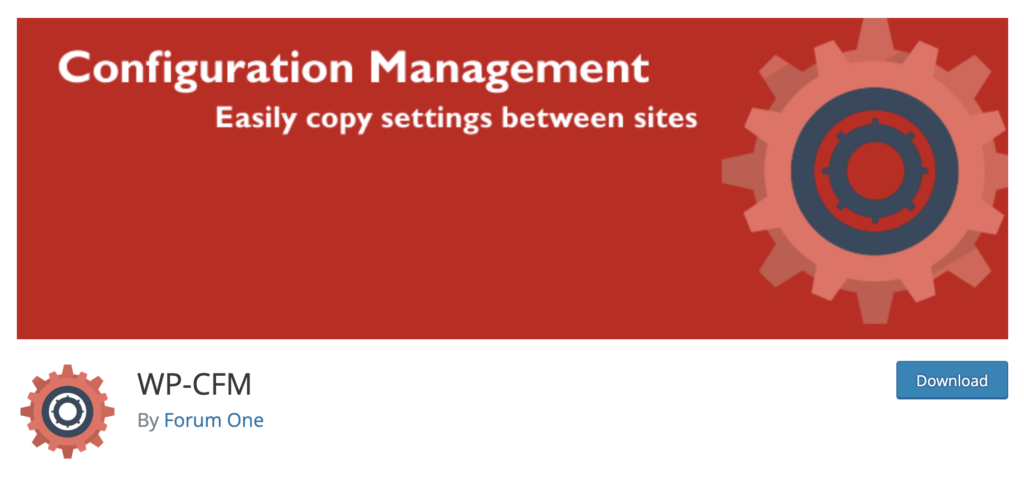
Screengrab from Forum One's download for WP-CFM

Source: WordPress

The difference between local and hosted environments

What exactly is a local development environment?  

Put simply, a local environment is a server that lives on your computer. You can get busy developing your website or any web application with it running full stack without worrying about hosting for the time being.

Whereas in a hosted environment, as the name suggests, you’re developing your website on the web with a hosting provider. Before you start to develop, you’ll need to choose a provider to host your site, such as any of our Hosting Partners.

How it works 

WP-CFM creates bundles, which are essentially JSON files of configuration — from the wp_options database table. These files are where most site options are stored. You can segment by plugin, for instance, General Site Settings, Yoast Settings, etc. Then, the plug-in allows files to be “pushed” to the file system. Specifically, a folder called /config/ within /wp-content/.
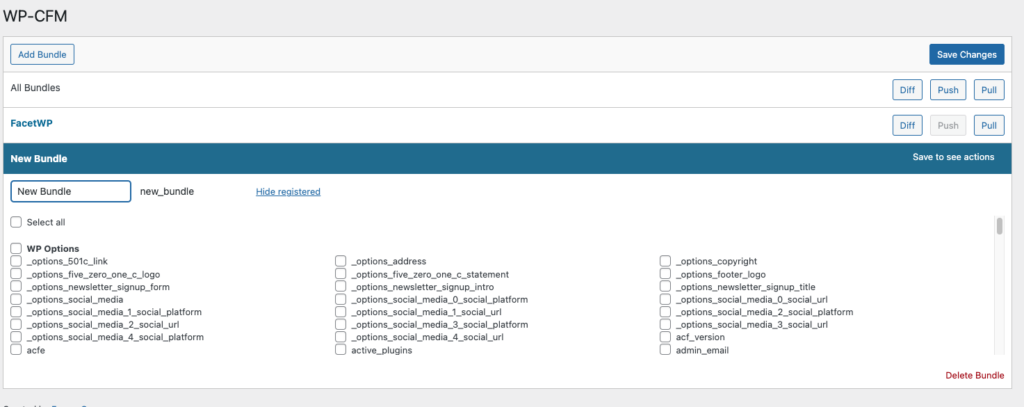
WP-CFM dashboard

Changes can then be imported or “pulled” into the database. You can also view the difference or “diff” in bundles via the plugin’s Dashboard — similar to how you can review changes with Advanced Custom Pro field syncs.

Why you should use it

There are multiple reasons why using WP-CFM in your workflow would be beneficial, though the big two wins are:

  • time and 
  • version control.

How do you save time? With WP-CFM, you can simply commit your configuration changes and push them up with your code. Once pulled into the database, you will not have to be concerned with manually making any database changes for configuration. Manual database changes can be extremely time-consuming, and it’s best to avoid them if you can. Queue WP-CFM. 

The other top advantage of using WP-CFM is version control. Websites often need to roll out complex configurations, making it very difficult to roll back. Using git, or another version control, you can easily track your changes and roll back.

Additional benefits 

Beyond saving your development team time and version control, utilizing WP-CFM also reduces the number of manual checks your QA team has to do.  

With less time spent on reducing features, your budget quickly gets lighter.

And last but not least, the WP-CFM configuration management is excellent for remote workers. Are you working off-grid without wifi for a few days? Your remote working stint won’t present any problems, as all development team members have the same configuration for their local work. 

WP-CFM in action

If your website is hosted by a managed hosting provider, you will know that the WordPress content folder is not writable. 

The first filter you see below will change the directory where WP-CFM stores the configuration and moves this to a writable folder.

The second filter is a companion to the first and will change the URL rather than the directory pathing.

The final filter disables the multiple environments that come default with the plug-in, reducing confusion with the development team regarding which environment they are syncing to.

add_filter(

   'wpcfm_config_dir',

   function( $var ) {

       return WP_UPLOADS_DIR . '/config';

   }

);

add_filter(

   'wpcfm_config_url',

   function( $var ) {

       return WP_UPLOADS_DIR . '/config';

   }

);

add_filter( 'wpcfm_multi_env', '__return_empty_array' );

Taking it one step further

WP-CFM is fantastic by itself, but it still relies on manually going to the plugin settings, and either pushing or pulling the bundles. That can easily be a missed step.

Using hooks such as Pantheon’s Quicksilver or circleci tools such as orbs, you can set up automatic pulls upon deployment via CI/CD. WordPress and some plugins, such as Gravity Forms and Advanced Custom Fields, also provide multiple developer hooks, filters, and actions that you can employ to automate the push.

Developing smarter

WP-CFM is a fantastic tool that saves you time, money, and headaches. By adding in a little automation, you help ensure parity between environments. You will eliminate back-and-forth communication for something as simple as a missed plugin activation or the wrong number of posts shown on an archive page.

Want to learn even more about the whys and hows of local development? Check out my talk at WordCamp Finland and develop smart by leveling up your coding.
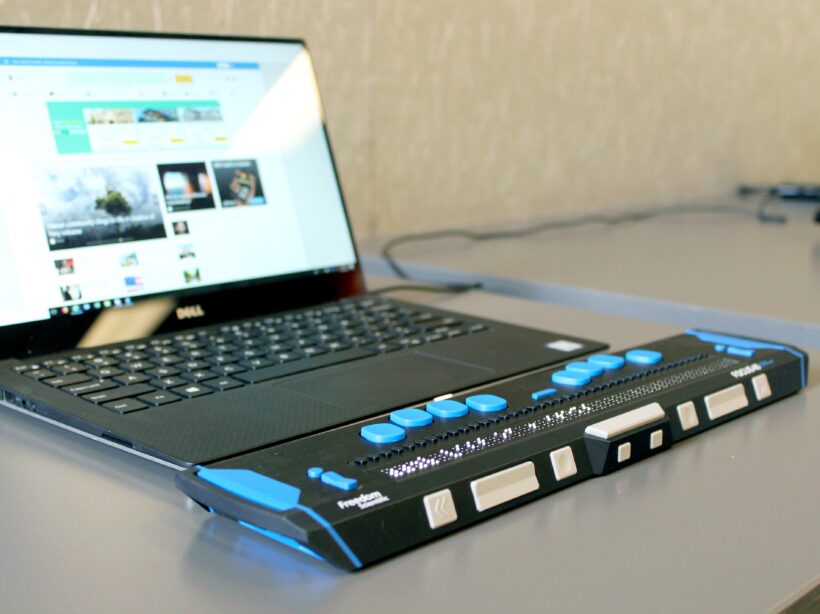

a close up photo of a lap top with a Braille keyboard attachment

How to Test Your Website for Accessibility

Faye
Faye Polson

There’s something wonderful about putting on adult shoes as a kid. They’re enormous and floppy and shuffle around on your feet as you lift and walk. I remember doing this often with my dad’s shoes, regardless of the smell, giggling all the way.

Somewhere along the line between then and now, walking in someone else’s shoes loses that magical charm. It’s more comfortable to maintain the status quo. What works for us must work for everyone, right?

Except it doesn’t. Humans are not “one size fits all” and this is also true when it comes to the internet. Like a building needs accessibility access, a website needs accessible code so that it can be used by everyone.

Many people have vision problems, hearing loss, physical limitations and more. In fact, 27% of adults — a full 61 million people — in the United States alone are permanently disabled in some way. Once you include temporary disabilities (such as a broken wrist), or extend the range to teens and children, that number soars even higher.

Your site could be unusable for up to a quarter of your audience, and it’s worth it to check. Follow this guide to do some quick testing, or jump down to our tl:dr.

Why automated tools are useful but also insufficient

We’re often asked for metrics and automatic scans that can “score” a site for accessibility. As appealing as that may sound, it’s simply not an option in the current technical landscape. In reality, it is generally accepted that automated tools can only detect about 30% of WCAG’s 2.1 success criteria. Any tool or service that claims 100% automation is 100% lying.

The reason for that is there are many accessibility issues that Artificial Intelligence (AI) simply cannot understand, and while a scan could possibly identify a place where a human mind should take a look, it couldn’t say with any certainty whether or not there is an error there. In fact, the more aggressive the scanning tool, the more likely it is that there are false positives in the results.

A common example of this are images. Automated tools can detect whether or not an image has alternative text (a requirement for accessibility) but they can’t tell if the alternative text is appropriate for the image.

Because of this, testing requires both automated tools and manual tests. And since each tool is different in what it can detect, and how it presents its errors, it’s recommended that you use multiple tools when testing website accessibility. Each tool has its own pros and cons, things it does really well, and areas that need improvement.

By the way, the disparity between automated testing and manual testing is also why we highly recommend you avoid quick fix solutions like overlays. There are a number of other reasons, including legal reasons, but when it comes down to it automated tools are only part of the process.

Automated scanning tools to use

Lighthouse (Google)

Pros:

  • Provides scores out of 100 (for people who love metrics)
  • Gives advice for manual checks
  • Easy to use extension
  • Generally no false positives
  • Identifies target size errors
  • Can also provide SEO and Performance audits
  • Links errors to Deque’s aXe ruleset

Cons:

  • Very simple scan
  • Only audits 44 possible accessibility errors
  • Provides minimal information regarding errors

WAVE

Pros:

  • Easy to use via URL
  • Allows toggling styles and javascript on and off for scans
  • Attractive visual interface
  • Shows Level A and AA items as errors (red)
  • Shows Level AAA, and Best Practice items as warnings (orange)
  • Identifies all ARIA used
  • Identifies all structural elements
  • Identifies accessibility features applied
  • Identifies contrast errors separately
  • Provides helpful information regarding error
  • Links errors to WebAIM’s WCAG 2 Checklist
  • Links directly to code in Developer Tools
  • Has built in contrast checker

Cons:

  • Cannot scan javascript injected content
  • Generates a few false positives each scan

aXe

Pros:

  • Shows Level A and Level AA errors
  • Best Practice items can be toggled on and off
  • Groups errors by serious, critical, moderate, and mild errors
  • Groups uncertain items for manual review
  • Links errors to Deque’s aXe ruleset
  • Explains specific fix options for each error
  • Links directly to code in Developer Tools
  • Rarely gives false positives

Cons:

  • Extension can be overwhelming and difficult to use
  • Does not scan hidden items
  • May or may not scan javascript injected content

SiteImprove

Browser extension
Paid Platform

Pros:

  • Platform version can scan site wide
  • Platform scans for Level A, Level AA, and Level AAA errors
  • Includes scans for Best Practices
  • Platform provides a score out of 100 (for people who love metrics)
  • Extension can be configured to scan for specific levels, such as warnings, items to review, best practice, items likely related to content entry, etc
  • Links errors to WCAG 2:1 Guidelines
  • Links directly to code in Developer Tools
  • Groups errors by guideline

Cons:

  • Aggressive scan causes frequent false positives
  • Considers many Level AAA and Best Practice items to fall under Levels A and AA
  • Difficulty understanding javascript injected content

ANDI

Pros:

  • Extremely easy to install
  • Very visual interface
  • Provides information on how a screen reader might interpret some elements
  • Great entry into understanding what kinds of errors can exist
  • Has built in contrast checker

Cons:

  • Does not link errors to guidelines
  • Limited suggestions for fixes

Add manual testing to find what the automated tools didn’t

Once you’ve run your site through some of the automated tools, it’s time to get some hands-on experience about what it’s like to use your site in someone else’s shoes.

How to do keyboard testing

Believe it or not, keyboard testing is actually “low key” and easy to do. There are only a few things that you need to know in order to do this testing on your own.

Tab, Shift + Tab

Pressing tab will move you down a webpage through interactive elements like links, buttons, and form fields. Pressing shift + tab will take you backwards through those same elements.

Spacebar / Enter

These keys “activate” interactive elements. When you are focused on a link, hitting one of these will open that link. Sometimes they can also move you into an “application” state where other keys become usable (see Arrow Keys).

Arrow Keys

These keys will scroll the page up and down, but not always. Tabs, accordions, sliders, and menus can be designed as applications. That means once you are focused on them (or enter them using the spacebar), using the arrow keys will navigate you through those interactive elements instead of scrolling the page.

Esc

If you have entered an application, or a popup window, the escape key should exit that area and allow you to continue down the page where you left off.

Knowing these interactions, you should be able to use your webpage without a mouse. Try it for yourself and see if you can reach and use all of the interactive elements.

  • Can you see where your focus is (what your next keypress will activate)?
  • Can you navigate through your menu?
  • Is tabbing logical, or does the focus move to unexpected areas?
  • Can you use sliders, accordions, galleries, videos, and tabs?
  • Can you enter form information and submit?
  • Do you get “trapped” anywhere and need to use your mouse to move on?

If you can’t use your page without a mouse, or if the keyboard experience is generally frustrating, then there’s some improvement to be made with accessibility. Keyboard functionality is vital to most assistive technologies, and if you had a hard time then chances are so is someone else.

A note about screen reader testing

You will likely need to hire someone to do this for you, as it takes a high level of skill and experience to operate. But using the ANDI tool on your site can show you some of the things a screen reader will present to a user, so if you’re interested give that tool a try.

To learn more about screen readers and assistive technology, check out our Screen Reader 101 blog post.

Where to find real users to test your site

Putting your site in front of real users with a variety of disabilities will most certainly uncover any issues missed by automated and keyboard testing.

Here are some resources for finding those users:

If you think there’s a problem, it’s time for a deep dive audit

While the methods mentioned here can give you an overall picture of a single page’s level of accessibility, it doesn’t reflect the full breadth of your site. For that, you’ll want a deep dive accessibility audit.

This type of work typically takes someone with a good deal of experience in the accessibility space. It would entail automated and manual testing of multiple pages to try and get a sample of each template used, in addition to some randomly selected pages. The auditor needs to know how to use multiple tools, how to test via keyboards and screen readers, how to investigate Javascript injected content, and know what to look for in criteria that can’t be caught in an automated scan.

Kanopi specializes in accessibility for our clients and we do offer deep dive accessibility audits, including itemized results for remediation. If you’re interested, send us a message!

TL:DR for testing your website’s accessibility

Try to use your website without a mouse.
If it’s frustrating for you, it’s frustrating for someone else.

Imagine someone was trying to navigate your homepage only by headings and links.
If someone couldn’t see the page and only had these elements to navigate by, would they know where to go?

Run your most popular page through two or three of the tools mentioned in this article.
A single issue can prevent someone from buying a product, viewing a service, or understanding your content. Take any errors seriously.

Re-test your site every so often.
Updates to code and content can unexpectedly change your site’s accessibility. Regular testing helps keep you informed about potential barriers on your site.

Want more accessibility info via a webinar?

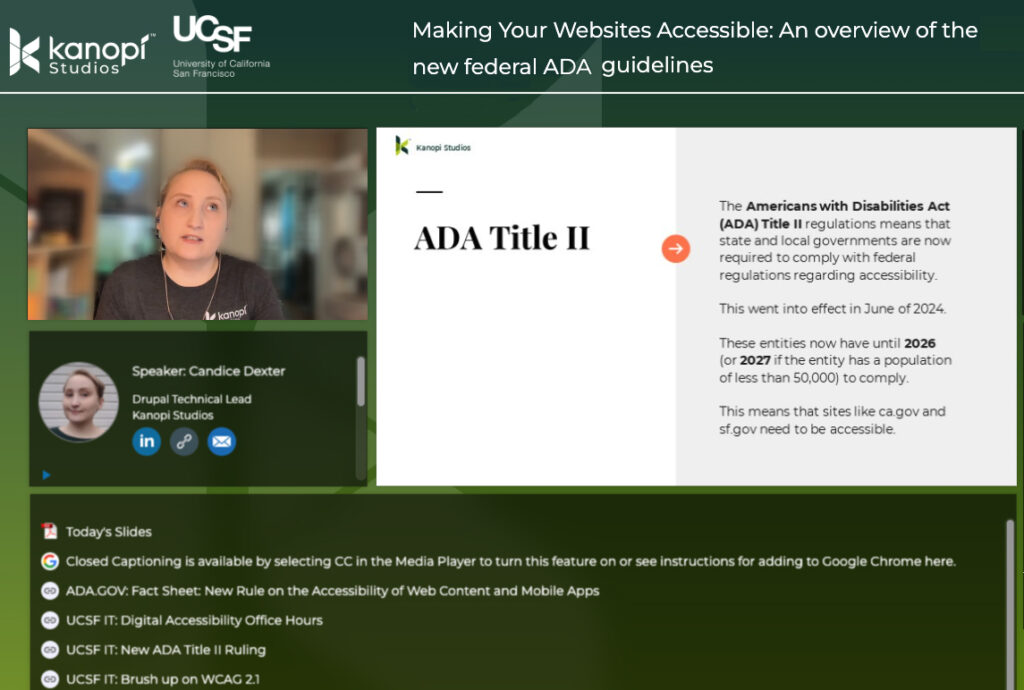
Interface of ON24's webinar platform with Candice Dexter giving a webinar on the ADA guidelines.

Kanopi’s Candice Dexter gave a webinar for our client the University of California San Francisco called “Making Your Websites Accessible: An Overview of the New Federal ADA Guidelines.” (30 minutes)

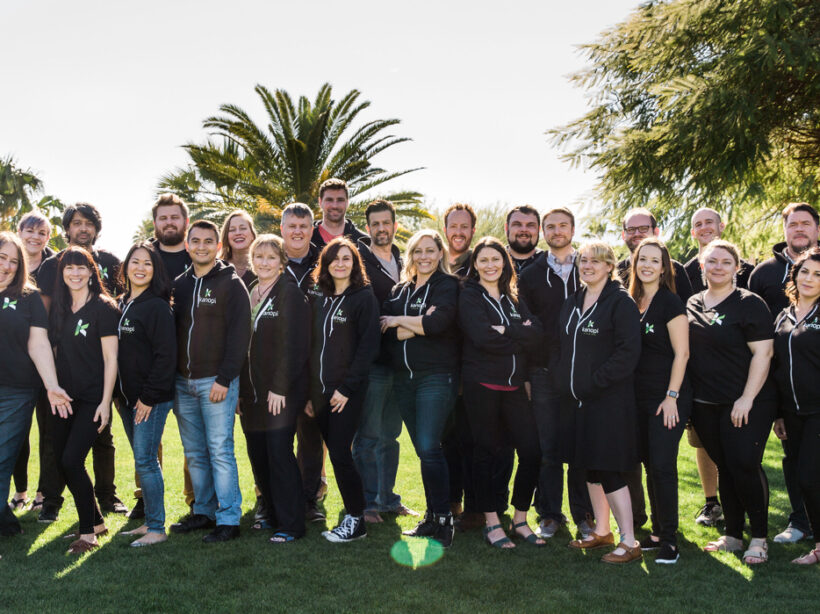
Kanopi Team

Kanopi Pack: Consolidated Package Management Made Easy

Ryan's Headshot
Ryan Leeson

Here at Kanopi, our amazing team of developers constantly works to not only create value for our clients but also contribute to the greater open-source communities of the development platforms we work with. With this in mind, we are excited to present Kanopi Pack, a new open-source tool for developers looking to simplify their workflows. 

Pre-Kanopi Pack

Developers often turn to tools like Grunt or Gulp to automate and manage repetitive tasks and static assets. These tools automate the process of creating your production scripts and styles from source files. However, they come with a few drawbacks. They can require significant configuration, which is time-consuming, error-prone, and can become a mini-project of its own to maintain.

As you bring new dependencies and packages into the ecosystem, you add boilerplate configuration and make design decisions, adding complexity. Your maintenance needs can scale quickly as you have to manage updates for each of these libraries. 

Further, you may need a small application, such as a calculator, on your site. Tools like Grunt and Gulp don’t offer modern support to build and manage a React or Vue application. These applications become separate projects, with their own additional sets of configurations and libraries to manage. Typically, they require you to run the application in a self-contained environment, making integration and deployment a challenge.

At an agency, you may have 100+ projects to work on and maintain every month across multiple teams. The question becomes, how do you manage these libraries sustainably while allowing your teams to work with a common configuration and providing a sensible amount of flexibility? 

What is Kanopi Pack?

Kanopi Pack is a toolkit designed to streamline package management and enable modern web projects or revitalize older projects with an aging toolkit. Kanopi Pack currently uses Webpack and consolidates management of its features and configuration into a single package, with an additional package at present for either React or Vue. 

Let’s say you’ve managed a WordPress website over the years. You may have updated a plugin that unintentionally broke something. Similarly, when you have multiple packages running at the same time, your project can break many times. 

Instead of running maintenance on one package at a time, with Kanopi Pack, you can conduct maintenance once across many packages. This saves time and minimizes testing. 

You are free to add or continue using additional packages in your project, provided they work in a modern JavaScript environment. There can be package mismatches or configurations from these additional packages you need to address, though this helps consolidate the troubleshooting scope. 

On the front end, Kanopi Pack provides a fully documented configuration file to tailor features for a specific project. You can install Kanopi Pack via Node Package Manager (NPM) anywhere in your project structure. For PHP-based applications, like Drupal or WordPress, you can install Kanopi Pack Asset Loader with Composer (Packagist) to manage registering the scripts and stylesheets in the application.

Why should you use Kanopi Pack?

Other consolidation tools promote the idea that you must install 20-30 packages to streamline your team’s workflow. Kanopi Pack is a free, open-source tool that allows you to manage multiple dependencies through one module. 

If you’re looking to refresh your outdated tech or keep your new build projects lean, Kanopi Pack is a useful infrastructure package to add to your toolbox.

Keeping up with the Kanopi team

Our team is committed to helping developers streamline their work by making projects more adaptable and easy to maintain. We value collaboration and contributing workable solutions like Kanopi Pack to our communities. Browse our GitHub to get a sense of what our other repositories can do. 

If our philosophy resonates with you, reach out to us today to learn more about our team. 

Hands on a keyboard

4 Google Tag Manager Strategies to Improve Performance

Nathan Shower

With Universal Analytics coming to an end in the next few months, marketing professionals are getting up and running with Google Analytics 4 (GA4). GA4 is an event-based analytics solution rather than a session-based one. That means GA4 focuses more on user behaviors and actions, not just the pages they visit. 

With that in mind, marketers must determine the most effective ways to track events. In this guide, we’ll share techniques to improve your site’s performance with Google Tag Manager. 

Your website’s performance matters because:

Let’s begin by reviewing the standard WordPress enqueuing process and how you can enhance it with Google Tag Manager. 

Standard WordPress enqueuing

WordPress gives users the option to add scripts to the header or footer of a document. Header-loaded scripts can block and delay a page from loading. By adding scripts to the footer, you can improve blocking time.

These scripts still need to be managed within WordPress and are subject to other plugins and elements loaded on the site. Fortunately, you can simplify this process with Google Tag Manager. 

What is Google Tag Manager?

Google Tag Manager is a JavaScript container that allows you to place additional pieces of code (or tags) on your site. It provides a single place to manage marketing efforts, conversion tracking, and other tags, and keep those tags organized and optimized.

With these tags, you can track user behavior and conversion metrics like link and button clicks, form submissions, conversions, page views, and more. 

Getting started with Google Tag Manager

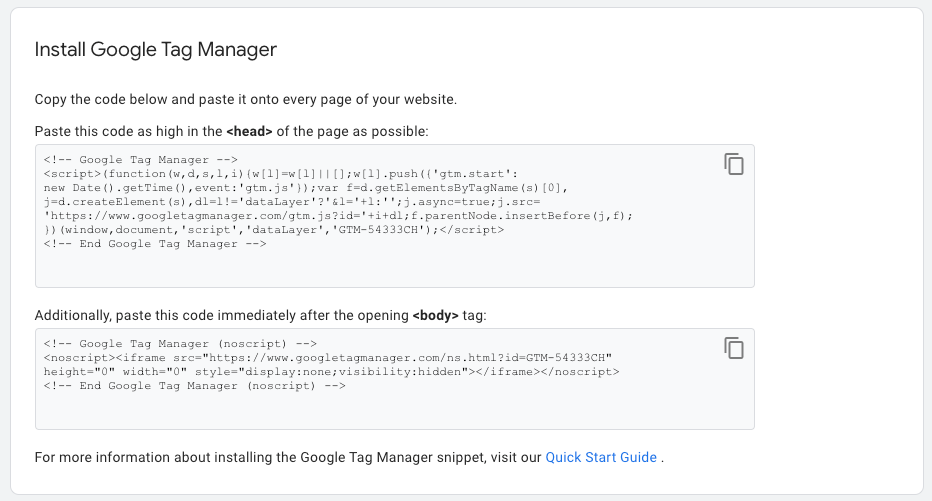
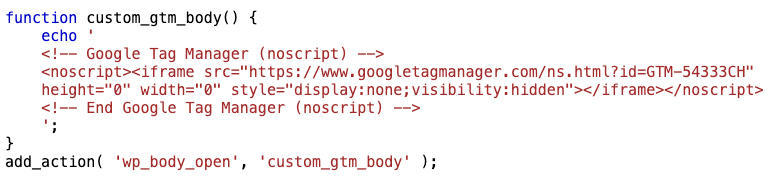
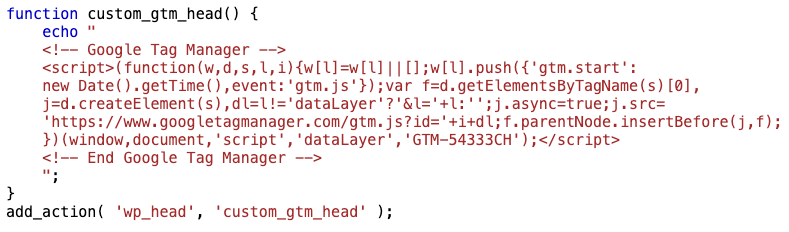
Install Google Tag Manager using these steps: 

Google Tag Manager best practices

You can improve your website’s performance by using tags strategically. Keep these best practices in mind when leveraging Tag Manager throughout your site: 

Load tags selectively

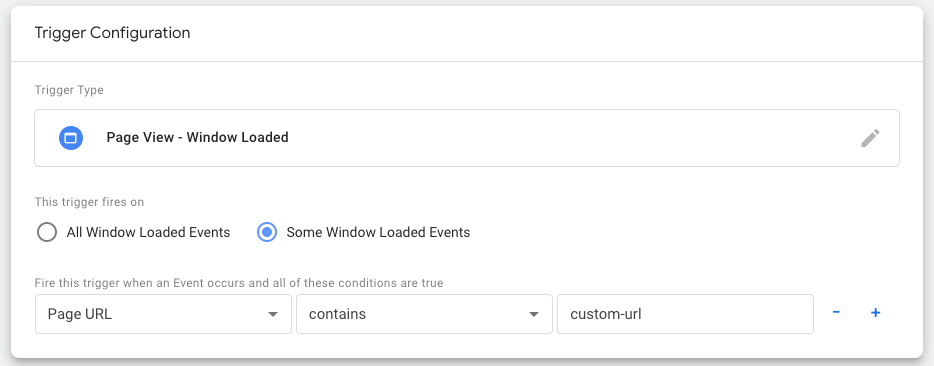
Don’t load tags on every page. web.dev recommends not using tags to load elements that immediately impact the visual or user experience, like hero images and cookie notices. Using Tag Manager to load these aspects can unnecessarily slow down your pages. 

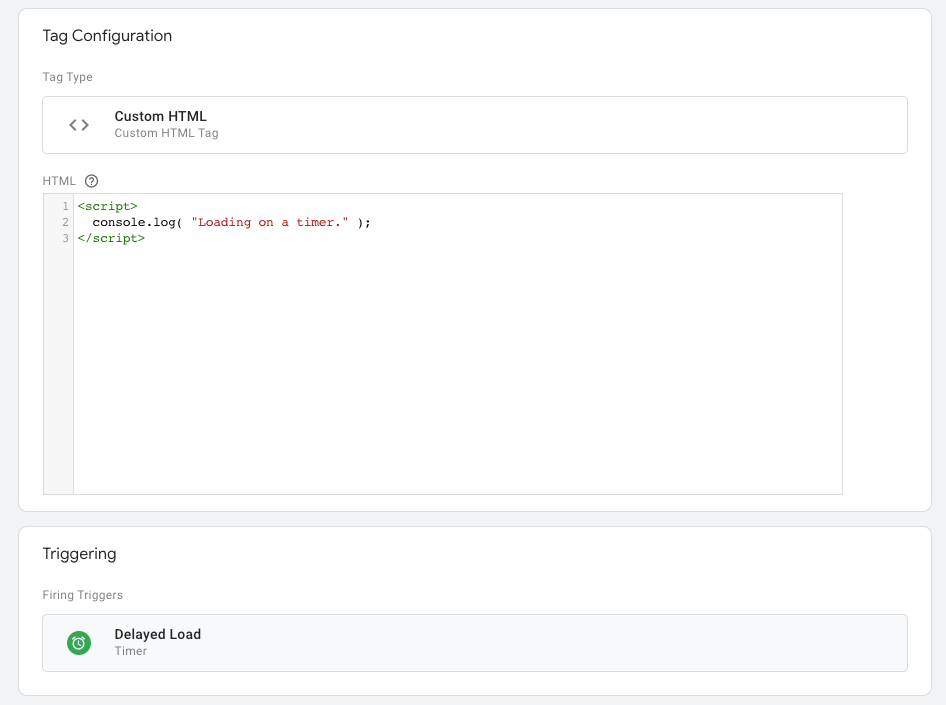
Use custom triggers to fire tags only on the pages that need them. Here’s an example of a custom trigger configuration: 

Fire tags later

Most tags don’t need to be ready instantly. You can put triggers in place to fire tags when specific conditions are met. This can help improve your page speed and performance. 

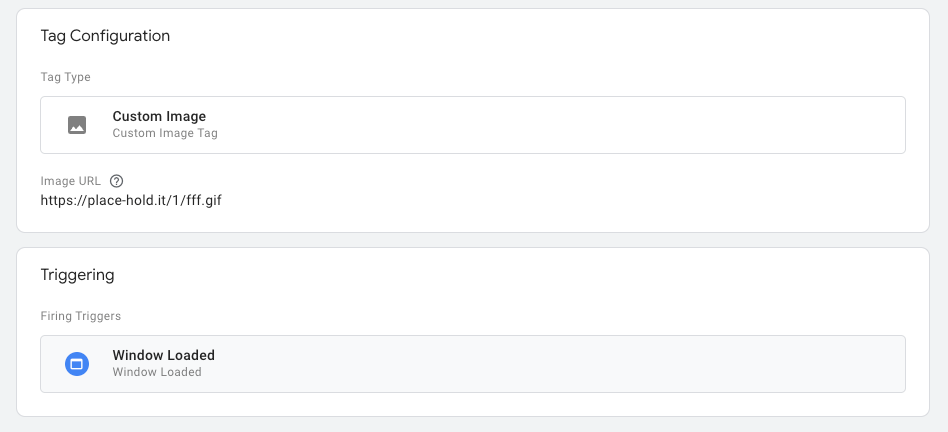
To do this, you can use the “Window Loaded” trigger instead of the “Page View” trigger. The “Page View” trigger fires immediately as the page starts to load. This can track all actions a visitor takes as soon as they land on a page, but you can run the risk of having your tags trigger too early before all page data is loaded. 

On the other hand, the “Window Loaded” trigger fires after all of the page’s content has already been loaded, such as the images, scripts, and other media. This can be helpful if you have some page content that loads later than other content. Later-loading tags can improve page speed, facilitating a better user experience. 

Deferring script loading

Deferring script loading until after the page’s content has loaded is another way to boost page speed and enhance user experience. 

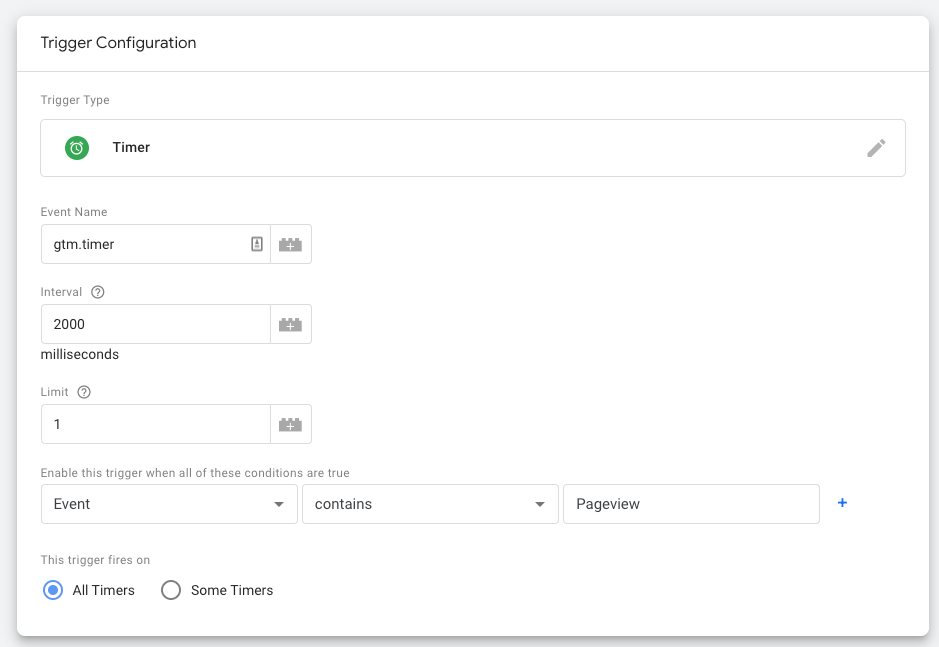
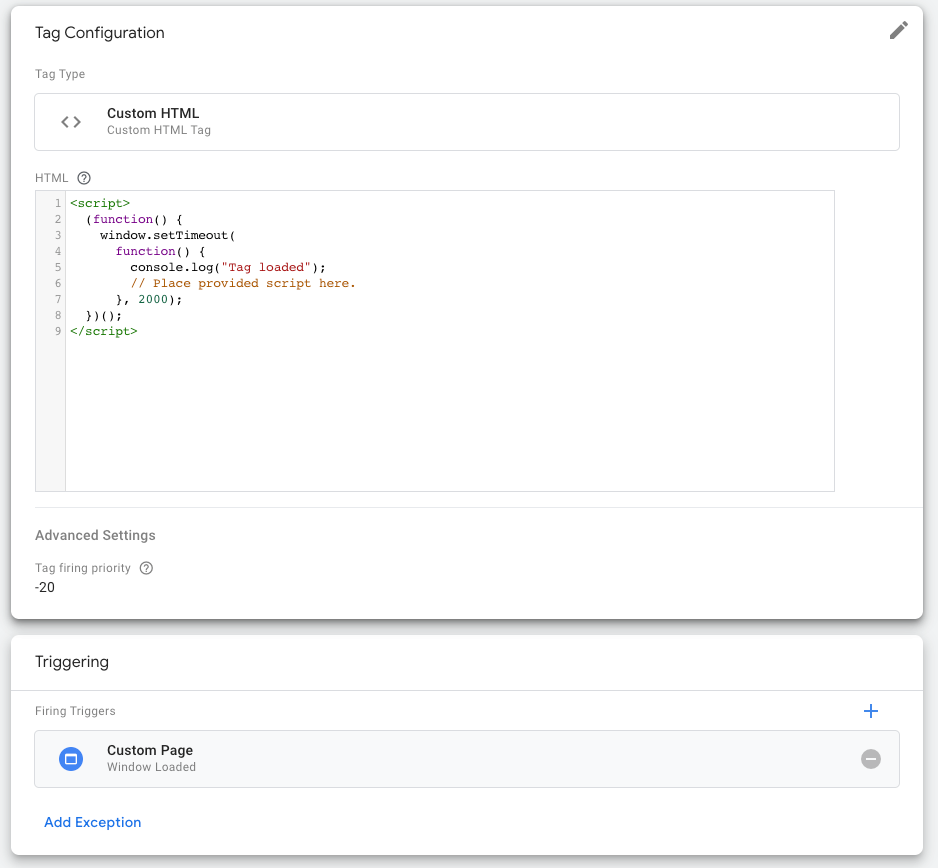
Using Google Tag Manager’s Timers, you can create a new “Timer” trigger type, set a delay, and run it on Pageview. Let’s review the steps of this process:

  • Assign a tag to the new timer’s trigger.
  • Use Window.setTimeout on the script. This is a JavaScript feature that can load the script but delay execution. The script will load simultaneously as the page loads but the execution will be held back until the timer has ended. This requires custom scripting per tag.
  • Set Tag firing priority to add additional delay.
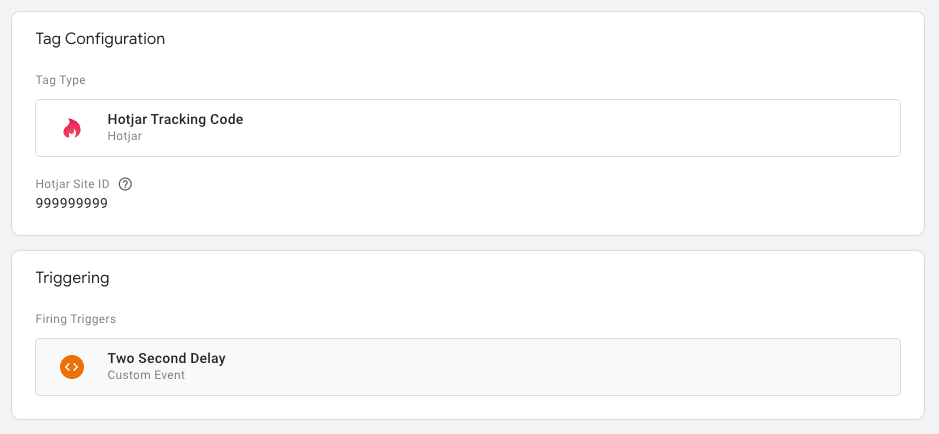
  • Add a custom event using window.setTimeout. This allows more control over when tags load.
  • You only need to develop one custom tag which is used as a trigger.

Audit and remove tags as needed

Fewer tags lead to faster load speeds. Audit your tags regularly, removing or disabling them as needed. 

Ask yourself the tough questions during this process. For instance, do you really need three different user-tracking systems in place sitewide? Does that optimization test need to load everywhere or just on the page that is being tested? Every step you take to make your configuration leaner boosts your site’s performance. 

Managing performance expectations

These strategies aren’t a miracle cure, but optimizing your tags could drastically improve your site’s performance.

Essentially, you should build your Tag Manager strategy around the idea that lots of small improvements can add up to major enhancements. 

Additional resources

Goodbye Universal Analytics. Hello, Google Analytics 4 (GA4)! Learn more about what to expect from GA4 and how to set your analytics up for success. 

8 ways to optimise Google Tag Manager (GTM) for speed and performance. This guide covers eight additional tips to optimize your Google Tag Manager configuration for speed and performance.  

Google Tag Manager vs Page Speed: Impact & How to Improve. Use the tips in this resource to further improve your website’s page speed. 

Wordpress Logo

ACF Updates in WordPress

Kate Walsh

The ability for Advanced Custom Fields (ACF) to create post types is one of the biggest updates WordPress is making since blocks.

On Apr 3, 2023, Advanced Custom Fields (ACF) released one of its most groundbreaking updates since the introduction of Gutenberg ACF blocks. This 6.1 plugin release includes one truly significant feature: the ability to create custom post types.

This new feature is particularly timely, as it allows for greater customization directly from the administrative area of WordPress. Adding custom post types with “no-code” isn’t a new paradigm — but it is new for ACF. Given that ACF already excels at consistently implementing fields, blocks, and many other features, we’re excited to see the introduction of custom post types in ACF.

A Brief History of ACF

ACF was created March 28, 2011 by Elliot Condron as an easier way to implement custom fields. And from the earliest dawn of the 1.0 plugin, ACF was a clear advancement over add_meta_box

Twelve years later, ACF has indeed proven its value, with over 2 million installations and counting. Features such as automatic field validation, a friendly UI in the admin panel, and powerful repeater and flex content fields make ACF a clear winner in the custom fields space.

After ten years of growth under Condron’s watchful eye, in 2021 ACF was sold to Delicious Brains, a significant player in the plugin community. Just over a year later, Delicious Brains – and thus ACF – was acquired by WP Engine. This acquisition was a shift for the WordPress community, but it also ensures that ACF remains in very capable hands.

Alternatives to ACF CPT

Naturally, there are some alternatives to custom post types in ACF. After all, we’ve been making CPTs for ages. Among those options:

Why We’re Excited for ACF CPT

In particular, there are a couple of ACF CPT features we’re anticipating in WP Engine:

  • ACF custom post types built into the ACF user interface we already know and love.
  • Custom post types will be available in both the free and pro versions. The developers could have easily locked this feature behind the premium paywall, knowing that many people would be willing to pony up for it. However, we applaud WP Engine for being kind enough to release it in the free version.
  • CPTs are synced with standard ACF JSON or PHP exports. Easy to synchronize and it keeps your CPTs out of the database.
  • ACF has a tool to help users migrate away from existing custom post type definition plugins, such as CPTUI.
  • The post type tool can be easily disabled with a filter, namely:
add_filter( 'acf/settings/enable_post_types', '__return_false' );

Fun Extras

While investigating this ACF custom post-type release, we encountered some additional fun tidbits. They may not be directly related to ACF CPTs, but we thought we’d share because it’s a pretty neat little collection!

  • ACF has a filter to show/hide the admin panel entirely. acf/settings/show_admin – this can keep developers, clients, and anyone else trawling through your WP admin panel from live-updating fields and post types.
  • ACF has a filter to force the preview mode of an ACF Gutenberg block. This is great for ensuring your back-end editing interface looks just like the front-end. Within block.json, set your “mode” within your “acf” JSON to “preview” to force any ACF blocks into preview mode.

In fact, if you’d like to learn more about the advantages of using ACF to build Gutenberg blocks, check out this article by our WP Engineering Manager Oliver Harrison.

Build With ACF — With Us

ACF is a foundational part of theme development at Kanopi. We’re excited to see the progression of ACF with these wonderful new features. And if you’re into building WordPress with ACF and other cutting-edge tools, we invite you to come and work with us!

4 Simple Steps to Migrate from Drupal to WordPress

Are you thinking of migrating from Drupal to WordPress?

Drupal is one of the most popular content management systems (CMS). Many organizations and institutions, from airports to universities, use its open-source platform, which currently powers 6% of the top 10,000 websites.

Drupal’s CMS gives web developers fine-grain control over user permissions, the ability to handle complex queries, advanced configuration management, and a platform that can host large amounts of data storage.

However, not everyone needs the complex capabilities that Drupal offers. While it’s free to use and has a strong community of developers and users, that doesn’t necessarily mean it’s the best CMS for you. That’s where WordPress, another popular open-source CMS, comes in. 

WordPress is considered one of the most user-friendly CMSs. Its intuitive editing experience makes it easy for non-developers to add content. It’s also the most popular CMS by far, used by 62.5% of all websites. Plus, it’s easy and fast to get a WordPress website up and running. 

In this guide, we’ll explore the steps required to smoothly migrate your Drupal website to WordPress. Here’s what we’ll cover: 

Let’s begin by reviewing common situations that lead organizations to consider a Drupal to WordPress migration. 

Reasons to migrate from Drupal to WordPress

There are plenty of pros and cons for both Drupal and WordPress, but you might have recently begun to feel that Drupal’s drawbacks outweigh its advantages for your unique website. 

Here are some common reasons why some organizations might want to switch their CMS from Drupal to WordPress:

  • Drupal doesn’t have all the capabilities you need.
  • Drupal is too confusing to use.
  • Drupal costs too much money to maintain.
  • WordPress’s editorial process and media management are much easier than Drupal’s.
  • WordPress is more user-friendly and doesn’t require as many custom configurations.

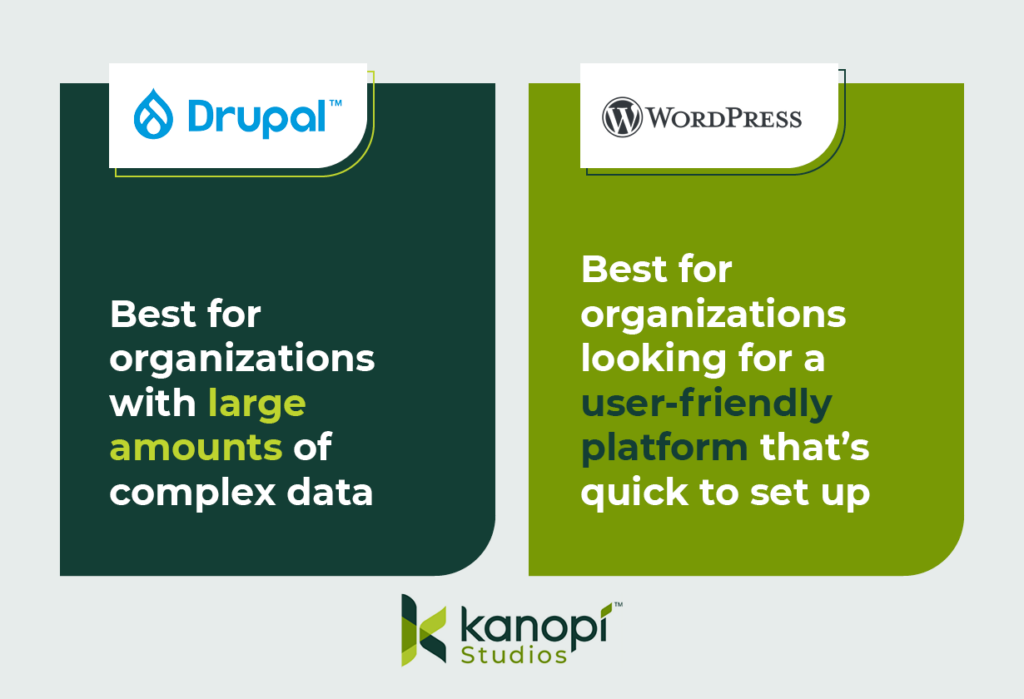
Essentially, Drupal tends to work better for more complex web projects and large amounts of data, whereas WordPress is often considered to be more user-friendly out of the box. 

This image explains the primary benefits of Drupal and WordPress. Drupal is best for organizations with complex data, while WordPress works for organizations looking for a user-friendly, quick-start platform.

Things to consider before a Drupal to WordPress migration

A Drupal to WordPress migration may require a decent amount of work. If your original Drupal site is more complicated than you thought, you might be looking at a lengthy and budget-pushing migration. So, you shouldn’t jump into the migration process without careful thought and consideration. 

Here are two initial considerations to remember when planning your Drupal to WordPress CMS migration:

Ensure you have appropriate hosting

If the host you use for your Drupal website doesn’t support WordPress installations, you’ll have to switch to a new provider. Here are some hosts that have managed WordPress offerings and support the WordPress community: 

Assess the complexity of your data

Not every site element will transfer smoothly during the migration process, especially since the code components that make up Drupal sites differ from WordPress sites. This will likely result in more custom code and alterations during the migration. For example, your Drupal site might: 

  • Use paragraphs or panels, which you’ll need to convert to Advanced Custom Fields (ACF) content in WordPress
  • Feature a lot of metadata or redirects, which can make mapping your data more complex
  • Require custom functions if you’re migrating your data into WordPress Gutenberg blocks
  • Contain many different content or user types, which also have their own fieldsets and will affect your data mapping
  • Have relationships between nodes, referencing, and related content, which you’ll need to map on the WordPress site

You might feel confident that you can handle this migration on your own, but it’s recommended to partner with a technology consultant professional for the best results. 

For instance, the Kanopi team features professionals in Drupal and WordPress development who have insight into the best ways to tackle complex data during the migration process. We can also help you determine whether the move from Drupal to WordPress is the best next step for your organization. Our philosophy isn’t that one CMS is better than the other—just that one might have capabilities that better fit your needs.

4 steps to migrate Drupal to WordPress

Every Drupal migration is unique based on the site’s structure, but there are a few standard steps that developers take throughout the process. Even if you’re a marketing professional, it’s helpful to be aware of these steps to understand how the migration process will affect elements like your site’s branding and content. 

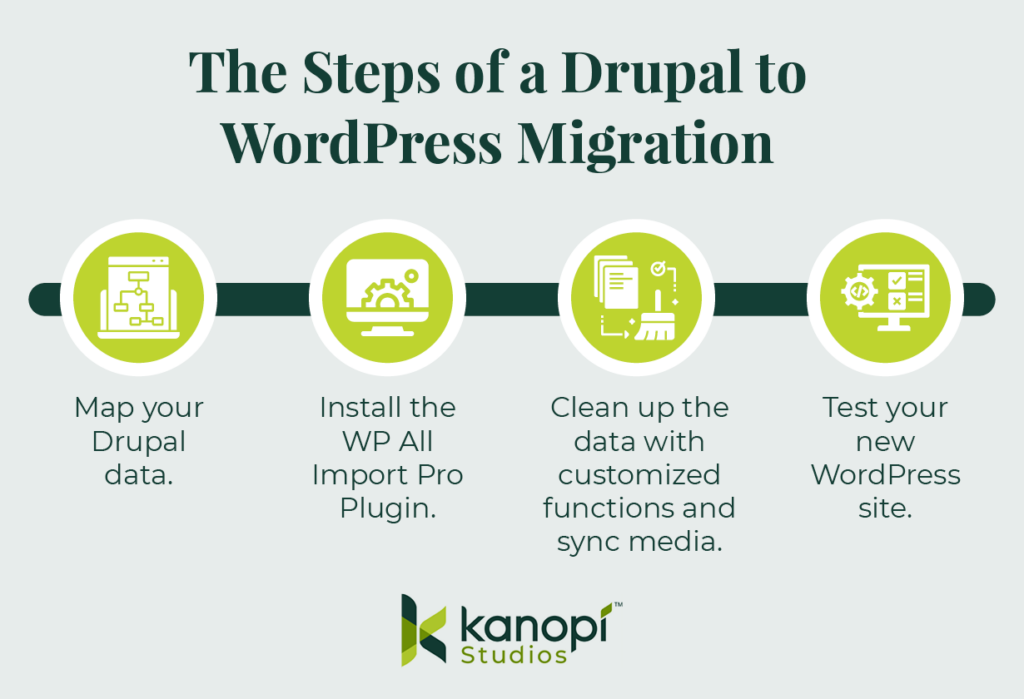
Here are the steps that you or a developer will take throughout the migration process: 

These are the steps of a Drupal to WordPress migration, outlined in the text below.

1. Map your Drupal data.

Transitioning from Drupal to WordPress requires more than just a copy and paste of a simple title and body field. Given Drupal’s complexity, your site is bound to have some custom elements and fields that need to be pulled over and converted to WordPress.

Before you begin the migration process, you’ll want to map out all of your Drupal data. This includes (but is not limited to):

  • Authoring information
  • Publishing dates
  • Images and attachments
  • SEO metadata

As you map out your data, keep in mind that you’ll want to export this on a content-type or user-type basis. This way, you can also import them into your WordPress site using the same method for each type. This is an important step because each content or user type probably also has a different field type.

Then, you’ll use Views and a Views Data Export module to output that content and create an XML, JSON, or CSV file. The type of file you use will depend on what version of Drupal you’re using.

2. Install the WP All Import Pro Plugin.

To prepare for the migration, you’ll also have to take some steps on the WordPress side. Specifically, we recommend downloading the WordPress plugin WP All Import Pro, with the ACF add-on. The add-on allows developers to map fields within Drupal to custom ACF blocks within WordPress.

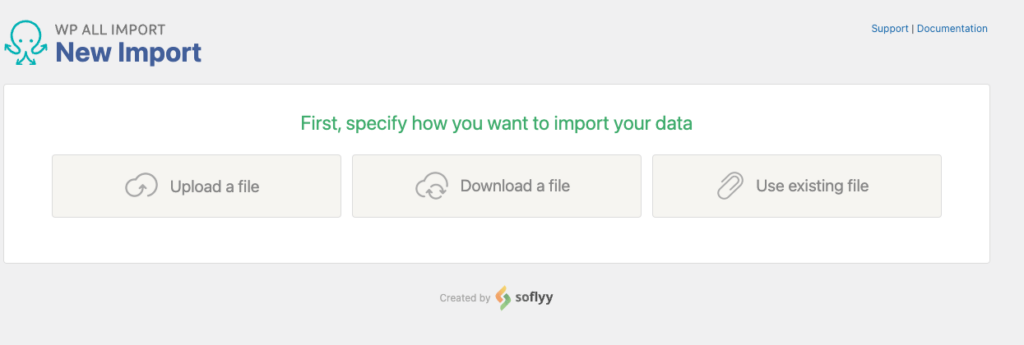
After you download the WP All Import Pro plugin, you’ll then upload the XML, JSON, or CSV file you created when you mapped your Drupal data. This first step allows you to choose how you want to import your data:

Screenshot of the All Import plugin screen asking the user how they'd like to import their data

Then, choose the data you want to import. Since you are migrating your whole site, you’ll likely import all of your data. This process can include posts, pages, taxonomies, users, or custom post types added by other themes and plugins.

3. Clean up the data with customized functions and sync media.

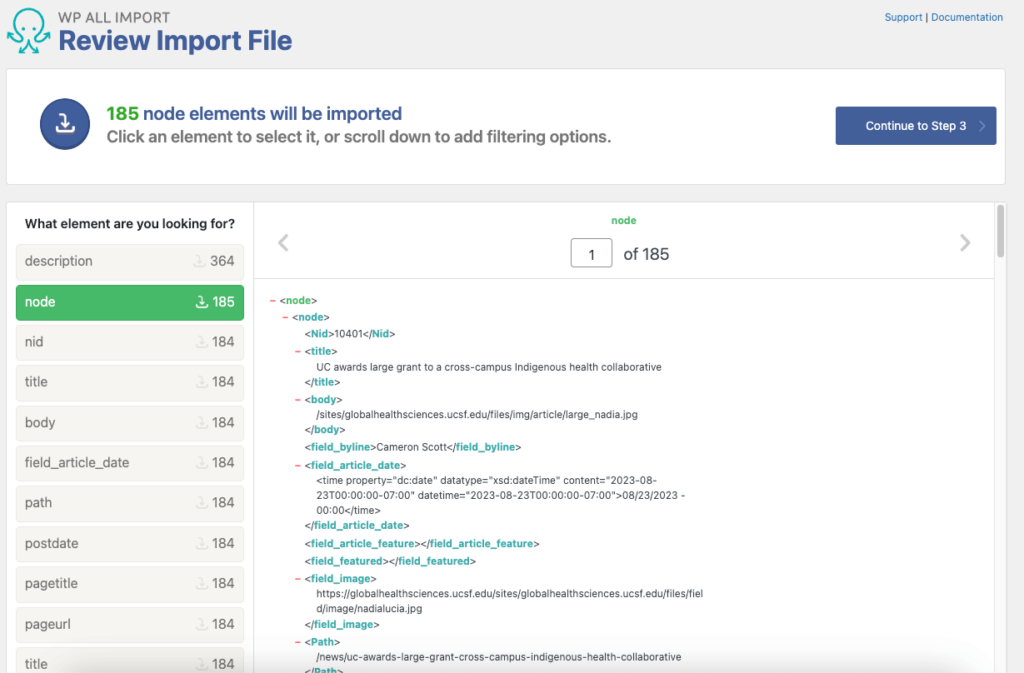
WP All Import Pro will process your import file and prepare the data you chose for import. This is the time when you can choose to configure your import data. You might need to write some custom fields to clean up, strip out, or map specific data.

Screenshot of an example of an import file in the WP All Import plugin

This step will differ depending on your Drupal site and the data you mapped, so the exact nuances you should look for and the custom functions you might create will be unique to your situation. In some cases, you may not have to make any customizations at all (but you likely will). 

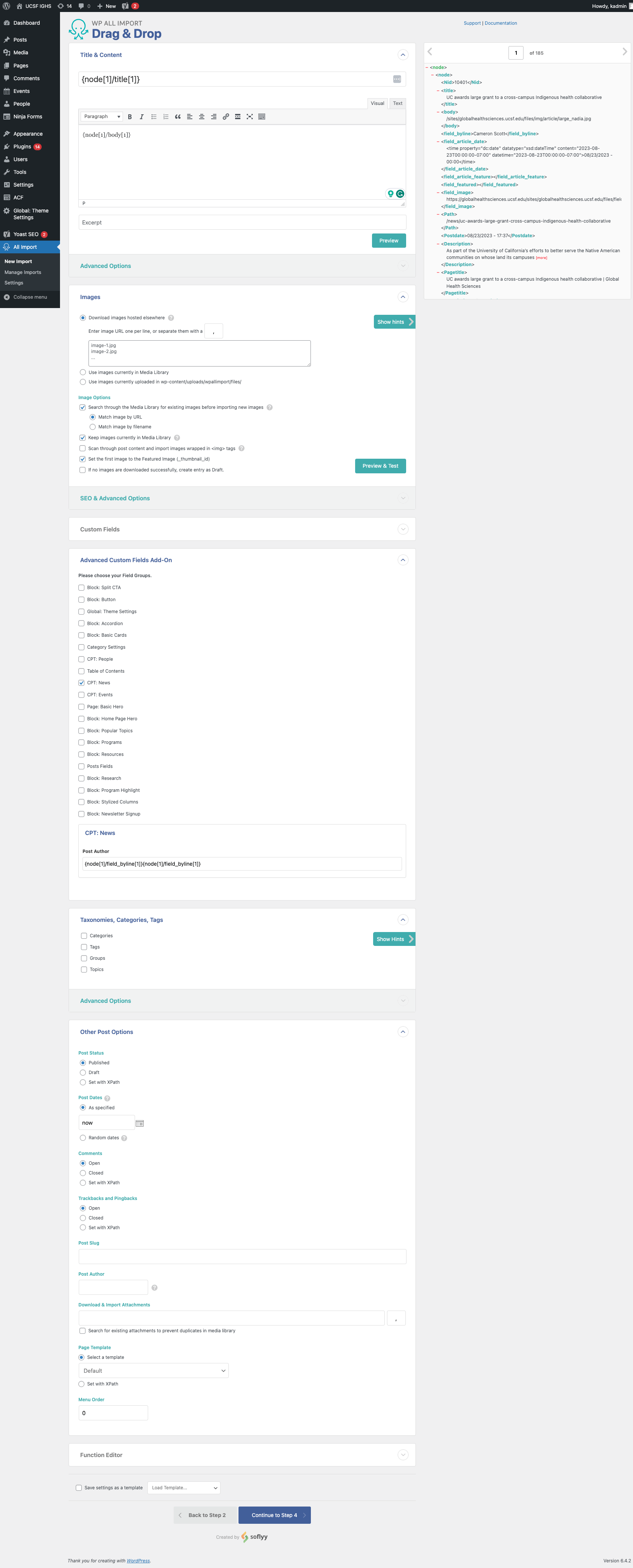
Here’s what the data will look like in the WordPress backend:

Data is shown in the WP All Import Drag & Drop editor

Additionally, sometimes images, PDFs, or other attachments don’t transfer or fail during the migration. This can lead to broken links, images that don’t load, and website issues.

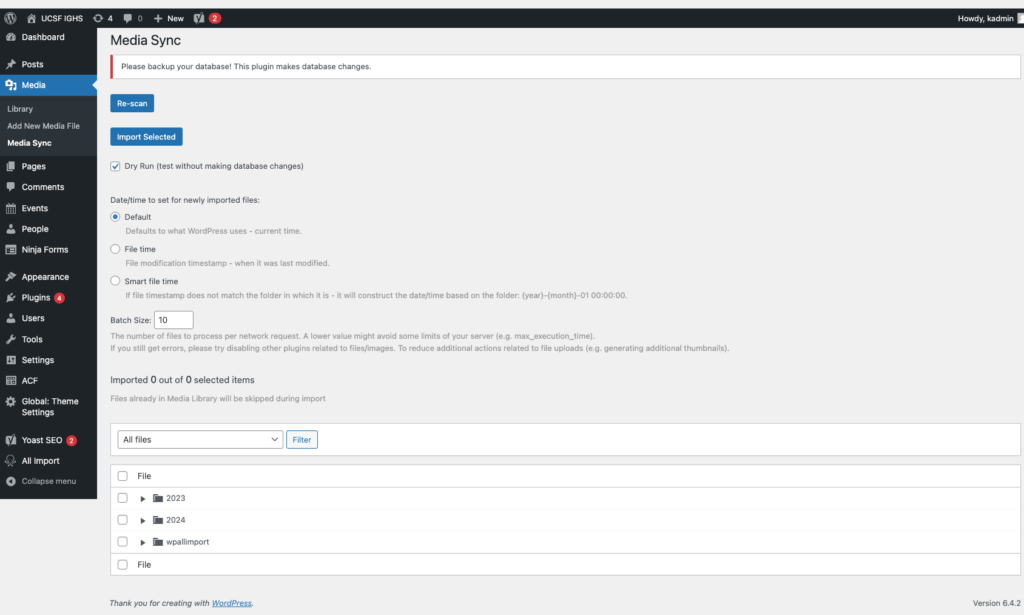
The MediaSync plugin can help resolve this issue. You can initiate a Secure File Transfer Protocol (SFTP) to transfer the files that didn’t initially move over to an uploads directory within WordPress. Then, you can use the MediaSync library to sync the data and files to resolve any broken assets. Here’s a look at this plugin in action:

The WordPress Media Sync plugin

4. Test your new WordPress site. 

Once the migration is completed, test out your WordPress site to ensure everything is functioning properly. Browse your website manually to replicate the user experience and test various elements such as your:

  • Forms
  • Links
  • Content (images, videos, text, and other media)
  • Search functionality
  • Performance (for example, assess page load times)
  • Mobile-responsiveness
  • SEO elements (meta descriptions, titles, tags, headers, internal linking, etc.) 
  • Accessibility (image alt text, color contrast, keyboard functionality, etc.) 

Testing these elements will allow you to catch errors that might have accidentally carried over or appeared during the migration process. 

Tips for optimizing your new WordPress website

After completing the migration, you can start to optimize your WordPress website to set it up for long-term success. Follow these steps to keep your website in tip-top shape: 

  • Run performance tests regularly. Tests like PageSpeed Insights can help you identify elements that may slow down your website. Common reasons for website lag include images that are too large or unnecessarily messy or complex code. Test your site regularly to catch and correct these errors before they negatively affect your site’s usability. 
  • Install any necessary plugins. Some of the most useful WordPress plugins include those for SEO, security, or caching. Make sure to carefully vet any potential plugins before using them to ensure that they won’t slow down your site. 
  • Set up Google Analytics 4 (GA4). GA4 is the latest generation of Google Analytics. It’s an event-based tracking tool that can help you better understand your website visitors’ behaviors. Set up your GA4 configuration and Google Tag Manager as soon as possible to start tracking traffic on your new WordPress site. 

These steps will help you maintain a strong website foundation, allowing you to easily adapt to any WordPress trends or new innovations as they arise. 

For more information about how to manage your WordPress content effectively, check out Kanopi’s webinar on the subject.

Wrapping up

Even if you feel confident that you can handle the Drupal to WordPress migration on your own, it’s recommended to partner with a technology consultant professional for the best results.

Here at Kanopi, we typically recommend Drupal for clients with complex needs and large amounts of data. If you think you can do without the high-power capabilities of Drupal and would rather opt for something more user-friendly, then WordPress is the right move. But, if you think Drupal will serve your organization better in the long run, our Kanopi team can also assist with any version migrations or updates you need.

Looking for more tips to help determine the best path forward for your website? Start with these additional resources: 

Drupal 7 End of Life: A Guide to Next Steps. If you’re a Drupal 7 user, you might be weighing your options ahead of Drupal 7’s upcoming end-of-life. This guide offers tips to help determine your next steps. 

Drupal vs. WordPress: Which One is Right For You? Choosing between WordPress and Drupal comes down to weighing the pros and cons of your unique website. Assess the primary differences between the platforms with this guide. 

12 Business Benefits of Using WordPress for Enterprise. If your website needs to handle complex enterprise needs, WordPress can be a great fit. Learn about the primary benefits of WordPress for Enterprise.

Wordpress Logo

Should You Use Headless WordPress? The Pros and Cons

Ryan's Headshot
Ryan Leeson

As web developers seek more opportunities to design flexible, dynamic websites to serve their clients’ needs, one of the most popular solutions they turn to is headless WordPress. 

A headless or decoupled CMS paves the way for simple multi-channel or cross-device content delivery and allows developers to implement new innovations quickly. In this guide, we’ll cover the benefits and drawbacks of headless WordPress to help you determine whether headless is the right choice for your project. 

What is headless WordPress?

Headless WordPress is a content management system that uses WordPress for the back-end editing experience while using a separate, custom front-end stack to display content to visitors. 

Traditional WordPress configuration

A traditional WordPress configuration uses themes to display content to visitors on the front-end. An inherent feature of a traditional web stack is the user-managed site content (i.e. the words and images of a blog post or page) is pre-assembled and delivered as one whole block of HTML, along with the template (the structural and visual treatment including navigation, logo, social icons, etc.). Essentially, the site’s overall structure and per-page user-managed content are completely intertwined. 

If you need parts of your site to receive updates or changes based on user interaction, this coupled assembly can become a drawback. Imagine if every time you changed an item in your cart while using a web storefront, the whole page reloaded. 

Communications between a visitor’s web browser, via JavaScript (JS), and a site, via Application Programming Interface (API), have been used for decades to help websites manage small interactions on a page. With this combination, only the relevant data or parts of a page are sent and received by web browsers.

This JS+API methodology is a common website-building approach, but it comes with a few drawbacks. The JS applications are coupled but separate from the rest of the website. Plus, they’re written in a different language, meaning developers must recreate significant segments of their original PHP-written code in JS.

Headless WordPress configuration

On the other hand, headless WordPress delivers content through an API. This allows you to send and accept data as JSON, which is a native data structure for JavaScript. This provides more flexibility in adjusting the front-end experience. 

WordPress natively offers the REST API, which allows secure interaction with a site and its data. In addition, a community-led initiative created by WPGraphQL provides another flexible type of API. These tools offer standardized functionality rather than having to roll out your own entirely custom-built APIs. 

Both tools retrieve a site’s content and data in a systematic, standardized way, rather than having to sift through extra information. The data and content from the APIs are by default in JSON format. 

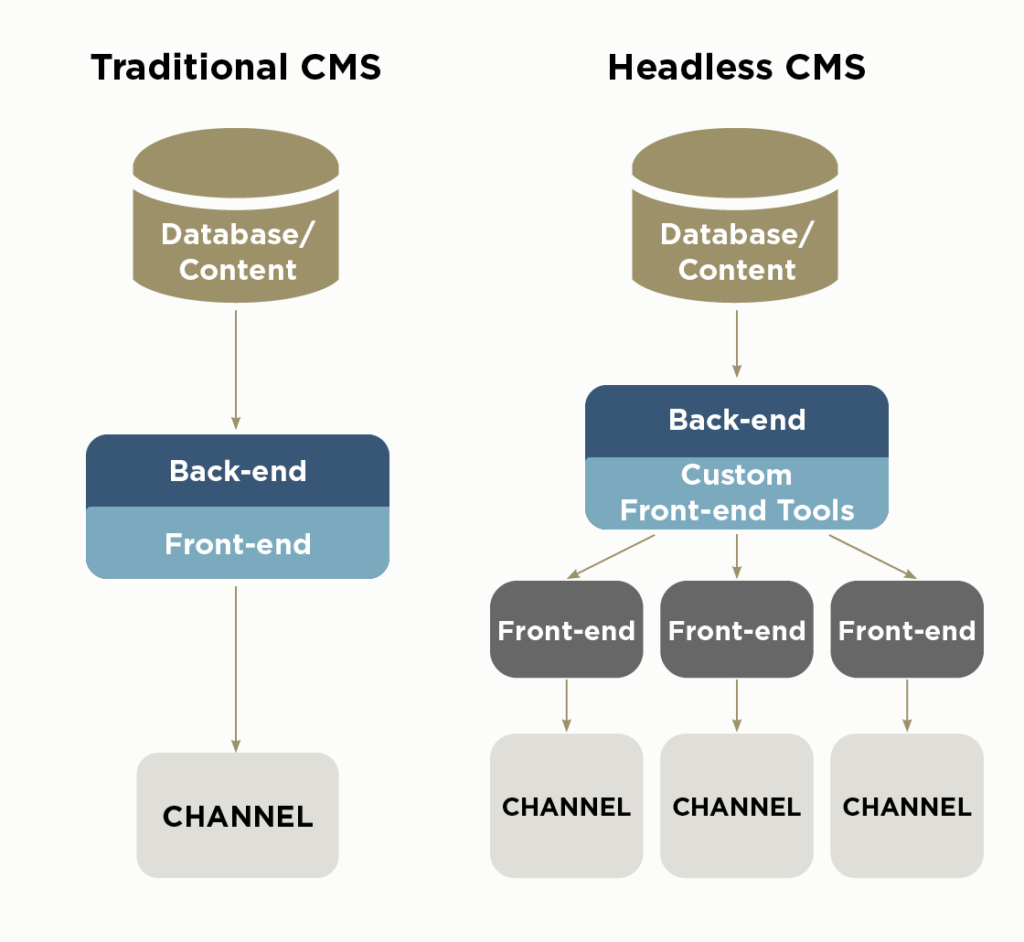
Review this infographic for another look at the differences between traditional and headless CMS configurations:

This graph shows how traditional CMSs deliver content in a coupled format while headless CMSs use a decoupled configuration.

Headless WordPress benefits

What benefits can a headless system offer your WordPress website? Here are a few additional advantages of headless WordPress:

  • Greater development flexibility and control: Choose any front-end developer tech you like—you aren’t limited to using the CMS language. 
  • Greater design flexibility: Create a unique user experience without being restricted by the preset templates and themes. 
  • Ability to create a faster, more efficient website: Decoupling your website from the traditional WordPress format can help speed up content delivery with more efficient, tailored code. Start with a dynamic front-end framework like NextJS or Gatsby, both written in JavaScript, which natively composes the site using small, flexible chunks of data and content. 
  • Better security: Since your front-end content is separated from the back-end processes, there are fewer opportunities for hackers to gain access to your database. 
  • Ability to publish on multiple channels: Because the site’s content and data are separate from the theme and templates, it’s easier to provide the information needed for secondary platforms such as mobile devices, kiosks, and smart devices. Let’s say you run a company that syndicates content to subsidiary groups or republishes content across an intranet as well as your external site. With the content and data presented via API, each site can read only the content of an individual article without adding the templated content and branding. 

Headless WordPress allows you to get creative with your content and find the delivery format that works best for you and your audience. 

Headless WordPress drawbacks

Headless WordPress is not for everyone. Typically, it works best for organizations that have the resources needed to maintain this configuration for the long term. 

Here are a few reasons why headless WordPress might not be the right choice for your CMS configuration:

  • Requires more maintenance: Because your site’s back-end and front-end platforms are different, you maintain two separate systems rather than just one. Having multiple elements also adds complexity to your CMS, which can take more time to set up and maintain.  
  • May have to pay for a developer to program the front-end: The traditional WordPress configuration is user-friendly for people and organizations with less website management experience or resources. In contrast, maintaining a headless WordPress system requires programming expertise, which you may have to outsource. 
  • May not have access to user-friendly third-party tools: CMS ecosystems provide a large variety of third-party plugins and other tools to solve common problems. In the near term, especially for WordPress, a lot of these solutions only support the traditional web stack. This means you may need to recreate or forgo certain convenient tools. However, many major components like internationalization, SEO, and cross-platform hosting (like WPEngine’s Atlas) are still available with minor integration work, meaning you won’t be completely on your own when it comes to user-friendly add-ons.

Headless WordPress configurations tend to be used more by major corporations with complex website needs. Smaller organizations may not have data needs that warrant a headless format. 

How to start your headless WordPress project

After reading these pros and cons, perhaps you determined your organization will consider launching a headless WordPress website. You have the time and resources needed to dedicate to the build and maintenance process, and you want the flexibility that a headless system offers. 

However, your organization might not have a developer or programmer on staff who can develop your headless WordPress configuration. In this case, we recommend working with an experienced web developer, like the experts at Kanopi, to help get your headless WordPress project off the ground.

What is Kanopi’s process for creating a headless WordPress website? 

When considering if headless WordPress is the right solution for our clients, we first ask whether the client’s site has enough dynamic functionality that justifies the transition from a classic CMS format. 

For example, does the site’s data need to easily move between pages for needs such as tracking user preferences or monitoring how visitors have interacted with the site so far? Will the site’s content need to appear on multiple platforms within the Internet of Things, such as smart speakers or mobile apps? Is the site’s content served in different ways to an organization’s internal and external audiences?

If the answer is yes, we then identify the right solution for the client’s front-end needs. Our preferred solution is Atlas, WPEngine’s front-end solution for headless websites. 

Next, we get to work creating a UX strategy, site map, and wireframe before putting our blueprints into action. 

Headless WordPress case study

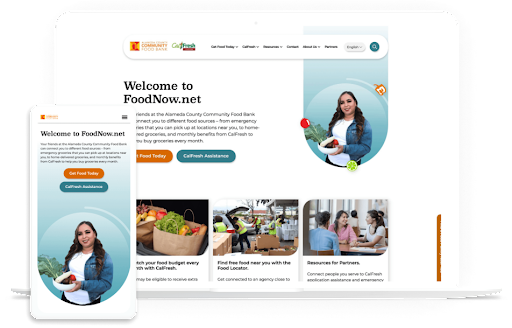
Kanopi worked with the Alameda Community Food Bank to design a new, user-friendly website to better serve its community’s needs. The organization needed a better way to connect community members in need with local food pantries and other resources.

The Alameda Community Food Bank website is an example of a headless CMS project that the Kanopi team developed.

We helped streamline the main navigation and added prominent call-to-action buttons for different users’ needs. Using a headless configuration, we also designed the site so that key data about visitors’ locations is constant across pages, making it easier for users to find relevant information quickly. This functionality made it simple to provide information about the closest food banks across multiple pages. 

Wrapping up

Headless as a service is an exciting new development, making this CMS format more accessible for all types of organizations with complex website needs. If you think headless is the right move for your website, don’t hesitate to reach out to the Kanopi team today to get your project started.

Green environment technology concept. generative ai showing a tree growing out of a motherboard

Green energy, cloud use, and sustainable websites

This Earth Day, consider how you harness the power of sustainability with your online presence.

Many people assume that the Internet is a more environmentally friendly way of sharing information; businesses and organizations are no longer printing materials on paper or plastics, using inks, and shipping mail as they did before the Internet became the primary marketing hub. There is a large environmental impact with supply chains, but building websites feels less impactful. 

But is it? Not necessarily. In fact, creating and maintaining websites uses a lot of electricity. And websites that are heavily trafficked use even more energy. 

The internet is not as green as you would think. Think of how many people are online at any given time. There’s an impact every time someone sends an email. Every time they send a tweet, or a Facebook post, etc. Then consider that an estimated 37% of the world’s population (that’s 2.9 billion people) have never used the internet, so there are still more people that could be online. 

There’s a carbon footprint involved with all we do digitally. As businesses become increasingly digital, we must ask ourselves how to ensure sustainability online. That means more than just making sure your website is up and running so you can eliminate other forms of communication — it means harnessing the power of green energy, cloud use, and building sustainable websites so that our digital presence is as eco-friendly as possible. 

This Earth Day, we’d like to provide some quick tips on how to be more proactive about sustainability when creating your next website project. 

But first, how “green” is your current site?

How does your website fare now? Use tools like Ecograder and Website Carbon to estimate your digital footprint. It’s an eye-opener to see where your website could be making improvements.

If you follow website UX and coding best practices, here’s the good news: by default, best practices for web design and accessibility translate into more sustainable websites. They are built using lightweight code that can load quickly even on slow connections Since they are designed to prioritize user goals, and performance less time is spent loading or trying to find information … which translates into time, energy, and ultimately cost savings.

Sustainable websites also use fewer resources overall, which helps conserve energy. They are often made as fast and performant as possible, particularly if they are more heavily used on mobile devices. And don’t forget about accessibility: sustainable websites tend to be more accessible for users with disabilities too! 

But if you need your website to be more sustainable, let’s dig into where you can make some impactful changes.

Harnessing green energy in the Cloud 

Green energy is a key component of sustainability online. After all, each time you access the internet, you are using electricity. But what if you could use renewable sources of energy such as solar or wind power instead of relying on fossil fuels? 

Cloud computing makes this possible. By hosting your data in the cloud and taking advantage of green energy sources, companies can reduce their carbon footprints while still getting access to all the same features they would with traditional hosting services. Plus, it’s often cheaper and has lower maintenance for your internal teams. 

In short, work with your hosting provider to make sure your website is powered by renewable energy. 

If you’re looking for a new hosting provider, a great place to look is The Green Web Foundation’s directory, a listing of over 500 hosting providers around the world with a tangible commitment to using green energy in their data centers.

Fun fact: Kanopi is hosted with Pantheon, which offers container-based, serverless hosting. And they’re built on GCP, a green platform

Practice sustainable web design

Practicing sustainable web design will help make your site efficient while reducing website carbon emissions. This includes being smart about how you use images and how they load on the page; one example is using responsive images, which serve the correctly sized image for the user’s device to avoid unnecessary resource usage. 

User Experience (UX) optimization is an ever-evolving practice, and Kanopi is constantly refining our approach to how users consume and interact with websites. By optimizing the user experience of your website, you can expect to see increased user satisfaction, shorter interaction pathways, and a reduction in overall energy consumption associated with your site. Essentially the better the usability of your site, the better it is for the environment. So make sure you know what your audiences are looking for so they can find it fast. 

This also applies to content: create content that is meaningful to your users in order to keep the overall site lean, and avoid content that adds unwanted complexity or bloat to your site. Video content is especially energy dense and should be deployed in a purpose-driven and user-focused manner. 

This website on sustainable web design has many other excellent suggestions on how to keep your site design as sustainable as possible.

Improve your page speed and performance

The faster your site loads and users find what they need, the less energy is used. The more efficient, the better. It really is that simple. 

How the site is built and developed is key. Due to the collaborative nature of open-source tools and the community, software tools are optimized for better performance and efficiency (something proprietary solutions don’t often consider). Open-source tools can also help lean teams start small and test ideas before scaling, thereby reducing waste. 

Website optimization is not a “set it and forget it” activity. It’s an area where you can always make iterative improvements, and ongoing optimization of your website is essential to reducing your energy footprint. 

This can be done in several ways:

  • Ensure your codebase is meeting or exceeding current best practices. Over time, these efficiencies will result in less energy consumed overall and will allow your site to stay evergreen.
  • Performance reviews. Looking at the key metrics that inform Google’s Core Web Vitals is a great way to impact your page speed (and rank higher in search results, too). UX patterns play a role here as well, since patterns like carousels are tricky to implement without noticeably affecting your page load times.
  • Only track what you need to track, and use a tag manager. Third-party trackers are one of the biggest culprits when it comes to slowing down your site. Think hard about how, when, and where you’re using the information, and only collect what you need. It’s also better for user privacy, which your users will appreciate!

Sustainability is good business. 

At the end of the day, harnessing sustainability online is essential for businesses looking to remain competitive in today’s digital world while still being mindful of their environmental impact.  

So when you’re thinking of more ways to be eco-friendly around the office, think beyond ways you can make your physical space greener or how your IT infrastructure could have a greener footprint. Consider how you can also apply eco-friendly techniques to your entire digital environment. In tandem with websites, sustainable digital marketing strategies go hand-in-hand. When it comes to digital marketing campaigns, it’s important to think about how you can minimize your environmental impact while still achieving your goals. This includes focusing on organic search traffic rather than paid ads whenever possible, and utilizing email marketing over direct mail campaigns which require physical materials like envelopes and paper. 

We recommend regular UX and code audits as the improvements they can provide are not only essential to the long-term health of your website but also have a direct impact on the amount of energy consumed (Kanopi can help with audits). Taking a holistic approach to sustainability will ensure your business is doing its part, and opportunities for positive impact exist at every level and scale. 

By keeping these tips in mind, CMOs and marketing managers can make sure their businesses are doing their part for people AND planet alike. 

Additional resources:

Wordpress Logo

Building Gutenberg Blocks with ACF is Still Relevant. Here’s Why.

Oliver Harrison

The Gutenberg Editor (or Block Editor), introduced in WordPress 5.0 in 2018, revolutionized the WordPress editing experience when it replaced the Classic Editor as the default option. To further improve the block editing experience, many developers turn to Advanced Custom Fields (ACF). This WordPress plugin allows users to add extra custom fields to WordPress editing screens, extending the Gutenberg editor’s functionality. 

Now, in 2023, some developers might question whether building Gutenberg blocks with ACF is still the right move for their web projects. Some have tossed around the idea that it’s better to use native Gutenberg blocks because full site editing is coming. 

However, it’s our opinion that ACF is still one of the best ways to develop your custom Gutenberg blocks. In this post, we’ll explain why and highlight some relevant ACF updates. 

What are the benefits of using ACF to build Gutenberg blocks?

We can sum up the benefits of building Gutenberg blocks with ACF in three words: simplicity, speed, and familiarity. 

Building Gutenberg blocks with JavaScript can be time-consuming and requires many developers to learn a whole new coding language. ACF makes the process much more intuitive, allowing you to create blocks using the familiar coding language many of us have been comfortable with for years — PHP. 

Furthermore, using ACF makes the block-editing process much simpler for clients who need to add or update content themselves. 

What’s the benefit of creating your own Gutenberg block with ACF rather than using the pre-made options?

Using ACF, you can develop Gutenberg blocks that better suit your unique website needs. You won’t be restricted by the limitations of core Gutenberg blocks or be forced to use one or several plugins to achieve a particular level of custom functionality. This allows you to tailor your website exactly to your (or your client’s) preferences.

What’s new with ACF?

There are plenty of exciting new ACF developments that make the plugin even more beneficial for your development projects. 

ACF 6.0 was released in September 2022, unveiling a fresh user interface, greater accessibility, and other new features that offer more flexibility to developers. Here are a few relevant ACF updates to be aware of: 

ACF 6.0 Blocks can use block.json

JSON is WordPress’s preferred format for registering blocks. It encapsulates the information WordPress needs to know about each block.

Block.json is new in WordPress and has now been added to ACF. This update makes it even simpler to tell WordPress that the block you’ve created is an ACF block and specify the values you want to add to it.

Here is an example of what your block.json file might look like:

{
	"name": "namespace/accordion",
	"title": "Accordion",
	"description": "A block used to show an Accordion.",
	"editorStyle": "file:./editor.css",
	"editorScript": "file:./editor.js",
	"style": "file:./frontend.css",
	"script": "file:./frontend.js",
	"category": "block-category",
	"icon": "table-row-before",
	"apiVersion": 2,
	"keywords": [ "accordion", "block" ],
	"acf": {
		"mode": "auto",
		"renderTemplate": "accordion.php"
	},
	"supports": {
		"align": false,
		"alignContent": false,
		"alignText": true,
		"anchor": true,
		"color": {
			"text": true,
			"background": true,
			"link": true
		},
		"customClassName": true,
		"fullHeight": true,
		"jsx": true,
		"spacing": {
			"margin": [ "top", "bottom" ],
			"padding": true
		},
		"typography": {
			"lineHeight": true,
			"fontSize": true
		}
	},
}

Many of these settings align with the typical settings for registering an ACF block type, with a few changes made to the name, script, and style parameters. 

ACF Blocks can inherit Gutenberg controls 

Inside block.json, Gutenberg controls were previously only available for JavaScript Gutenberg blocks. You can now apply some of the same controls to an ACF block as well — they can be enabled using the ‘supports’ property.

For example, if you want to allow a user to be able to change the background color of a block, you can add the ‘color’ property, then set the ‘background’ property to ‘true’, as seen above.

With that completed, you will then need to get the property set by the user, like so:

$my_block_classes = [];
if ( ! empty( $block['backgroundColor'] ) ) {
	$my_block_classes[] = 'has-background';
	$my_block_classes[] = 'has-' . $block['backgroundColor'] . '-background-color';
}

Finally, implode your block classes array into the top level of your block, like below:

<section class="my-block-name <?php echo ( ! empty( $my_block_classes ? esc_attr( implode( " ", $my_block_classes ) ) ) ) : ''; ?>">

With that completed, the color your user selects will be applied as a background color to your block. Keep in mind that if the WordPress color palette defaults aren’t overridden in theme.json, those defaults will be the colors available to the user.

You can “scope” block styles and scripts to each block 

Along with the block.json update, WordPress is encouraging developers to use the WordPress npm package, wp-scripts (aka @wordpress/scripts), to prepare blocks for rendering on the front end. This allows each block to independently have its own styles and scripts. 

WordPress automatically in-lines the styles and scripts for a block, as defined in block.json. This technique can make pages load faster because they will only appear when the block is present. The other major benefit is that if a certain block doesn’t appear on a page, it won’t load that block’s scripts and styles. This can save on your bundle size and will also keep one block’s styles from impacting the others.

ACF 6.0 features significant UI updates

With ACF 6.0 comes a refreshed look for the plugin, with updates made to admin screens such as the field group editor and tools page. For example, ACF has reduced the height of the fields settings screen by grouping settings into tabs. 

ACF has also made significant strides toward greater accessibility. Now, users can edit fields using only keyboard navigation. Also, ACF has improved focus styling for keyboard navigation, making it easier to see where you are on the page. 

Coming soon: Built-in Custom Post Type and Taxonomy creation

With the expected release of ACF 6.1 in the next few months, ACF users can look forward to custom post type and taxonomy creation within the plugin itself! This is huge news and will help many developers as it might allow them to remove a plugin from a site or allow them to build out custom post types without manual coding. Another nice perk of how ACF is planning to implement this functionality is that all of the Custom Post Type and Taxonomy configuration will be written to local JSON. This means it can be committed to a repository like GitHub, just like the custom field JSON.

Extensions make ACF even more flexible

Dozens of extensions can add supplemental functionality to the ACF framework. One of the most helpful is ACF Extended, an enhancement tool that adds over 100 additional features, such as new fields, new field groups, and bi-directional fields. However, ACFE can be overkill in certain use cases, as all those additional features can add unnecessary bloat. Choose your extensions carefully. There are also plenty of unofficial plugins available that you can use to further build out your web projects with supplemental ACF tools. 

The ACF community is growing

WP Engine purchased five popular developer-focused WordPress tools in 2022, including ACF. With this acquisition, the ACF team has become much more vocal, hosting twice-monthly community-oriented ACF Chat Fridays. Follow ACF on Twitter to stay in the know about when these chats take place and the topics they cover. 

Wrapping Up

Looking for tips and guidance to help you make the most of your WordPress project?  Reach out to Kanopi’s WordPress team or connect with other users via the ACF support page. It’s an exciting time in ACF history, so don’t hesitate to get involved in the community today.